

A reliable Google Workspace for business setup in Galena starts with your domain and its email DNS records. Business email with a custom domain typically requires domain verification through a TXT record, along with MX and SPF records. DKIM and DMARC add further email authentication. Aligning these settings helps your email work as intended from the start.
A professional setup covers more than creating accounts. It can include connecting your domain, configuring email records, organizing user access, and setting administrator controls for team collaboration. The right choices depend on your current email, domain access, team structure, and how your business manages shared files and accounts.
This guide explains what’s involved in setting up Google Workspace for a Galena business, which DNS records matter, and what administrator support can cover. You’ll also learn what information is needed and how managed IT support can keep the setup organized as your business changes.
Key Takeaways
- Custom-domain business email setup includes domain verification and email DNS configuration, with each record serving a distinct role.
- Professional DNS configuration can align MX and SPF records with recommended DKIM and DMARC authentication.
- Admin setup involves organizing accounts, managing shared access, and putting security controls in place for your team.
- Choose a plan by weighing your team’s collaboration needs, storage requirements, and video meeting expectations.
- A professional can coordinate setup decisions around your existing domain, email, and business workflows.
Business email with a custom domain
A Google Workspace business setup connects your company’s email identity to its account configuration. To use a verified domain, you first need to prove ownership, then you can create addresses such as name@business.com.
Domain Ownership Verification
Domain verification shows Google that your business controls the domain it wants to use. A common method is adding a TXT record in the domain’s DNS settings. The person handling setup identifies the domain provider, adds the verification record, and checks that Google can detect it. This helps prevent configuring email for a domain your business does not control.
Before setup begins, provide access to your domain account or coordinate with the person who manages it. If a developer maintains the domain, clear coordination helps avoid changing unrelated website records. Google Workspace’s verification prompt explains the confirmation required. The record itself is added wherever the domain’s DNS is managed.
Gmail Address or Verified-Domain Setup
Google Workspace business setup can begin with a Gmail address or use a verified business domain, depending on the account path. A Gmail address may work for initial access, while a verified domain supports branded addresses for staff and shared business communication. The key decision is whether email should use a company identity, such as sales@business.com, rather than a personal Gmail address.
For a business using its domain, creating accounts and verifying the domain are connected but distinct tasks. The administrator sets up user accounts, then configures email routing for the verified domain. Existing addresses, naming conventions, and the people who need individual accounts all shape the setup.
Email, Contacts, and Files Migration
A professional migration treats email, contacts, and files as separate data groups. Messages and contact records move into the appropriate user accounts, while shared business files are organized in Google Drive. Spreadsheets can be reviewed for conversion to Google Sheets when that better supports ongoing collaboration.
The migration plan should distinguish what stays individual from what the team shares. For example, a sales team may need a common folder, while personal correspondence belongs in each user’s mailbox. Storage needs matter, too: organize files according to their volume and ownership instead of moving everything into one unstructured location.
Setup Timing and Common Problems
How long does Google Workspace setup and domain verification take? Timing depends on domain access, DNS updates, account decisions, and the amount of data to migrate. DNS changes must become visible before verification succeeds, so the setup should be sequenced and monitored rather than assigned a fixed completion time.
Common problems include adding a record to the wrong DNS provider, entering an incorrect value, or overlooking existing email routing. A professional also checks user names, migration scope, and shared-file permissions. Google Workspace and Microsoft 365 both support business collaboration, but their account environments and familiar tools differ; the better fit depends on your team’s existing workflows, email habits, and use of documents, spreadsheets, and shared storage.
Professional configuration of DNS records for email
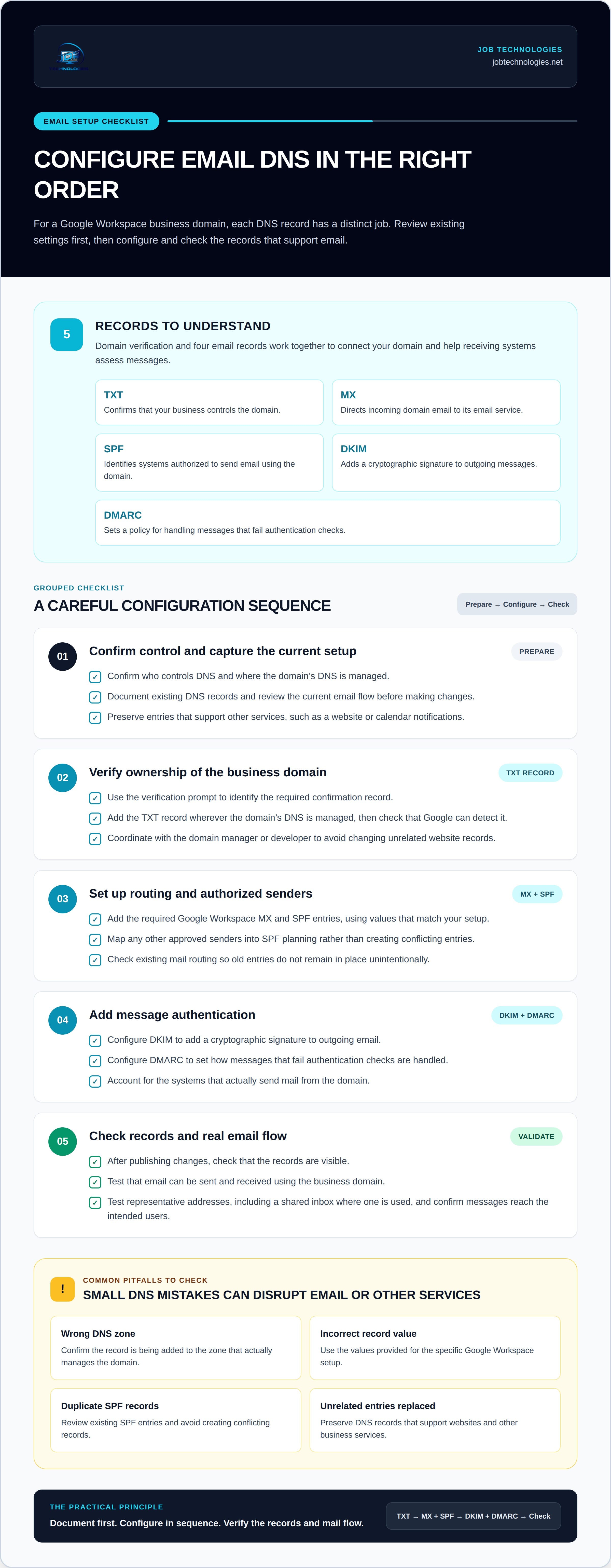
Email DNS records tell other mail systems how to route and assess messages from your domain. For Google Workspace for business setup in Galena, email configuration involves MX and SPF records, with DKIM and DMARC adding further authentication. Each record has a distinct role, so configuration should account for existing DNS entries and your current email flow.
How the records work together
MX records direct incoming messages for a domain to its email service. SPF records identify which systems are authorized to send email using that domain. DKIM adds a cryptographic signature to outgoing messages, while DMARC sets a policy for handling messages that fail authentication checks. Together, these records help receiving systems assess whether mail comes from an authorized source.
The exact DNS values depend on your Google Workspace setup and the domain’s current configuration. Review the existing DNS zone before making changes, preserving records that support other services, such as a website or calendar notifications. Replacing unrelated entries can disrupt services even when the email records are correct.
A careful configuration sequence
Start by confirming who controls DNS and documenting the current records. Then add the required Google Workspace MX and SPF entries, followed by DKIM and DMARC configuration. After publishing the changes, check that the records are visible and that mail can be sent and received using the business domain.
This sequence matters for a small Business Starter deployment and an enterprise environment alike. User numbers may differ, but both need records that match the systems actually sending mail. If your business also uses another approved sender, include it in SPF planning instead of creating conflicting entries. For Google Workspace setup for a Galena business, mapping authorized senders before making changes helps keep email routing aligned with actual use.
Checks that reduce disruption
Common DNS issues include editing the wrong domain zone, duplicating SPF records, and leaving old mail routing in place. A configuration review can catch these problems before staff rely on the new mailboxes. Test representative addresses, including a shared inbox where used, and confirm messages reach the intended users.
Changes to mail authentication can also affect automated messages from business applications. Consider services that send scheduling notices, calendar invitations, or file alerts before finalizing DNS records. This helps prevent a setup that works for ordinary Gmail messages but overlooks another system sending on the domain’s behalf. Careful Google Workspace email setup in Galena accounts for these connected services before records are changed.
For businesses with specific security or documentation needs, DNS and email configuration support can help align record changes with broader compliance assistance. The result should be a clear configuration record, so future administrators can understand why each entry exists and which service depends on it.
Admin setup and support
A Google Workspace administrator shapes how employees sign in, access documents, and share information. A professional setup aligns accounts, permissions, and security controls with the way your business operates.
Administrators are advised to enforce two-factor authentication across the organization. Give staff a one-to-two-week grace period to set it up before enforcement begins, allowing time to register their sign-in method.
Set roles and access around work
Start admin setup by identifying who needs an account, which files teams share, and who can manage settings. A business owner may need administrative privileges, while customer-facing staff may only need access to their business tools and relevant documents. Separating everyday accounts from administrator access helps limit unnecessary control.
For Shared Drive access, Google Workspace administrators are advised to use Google Groups rather than adding individuals directly. A group can reflect a team or role, making access easier to manage as responsibilities change. For example, administrators can add an employee to the appropriate group instead of updating permissions across several shared folders.
Contractors can be assigned the Contributor role when they need to add and edit files but should not delete them. This permission suits a project partner who contributes documents without needing full control of the shared workspace. Match each role to the work it requires.
Apply security controls consistently
Account security also depends on how access changes when people join, change roles, or leave. A professional establishes a process for creating accounts, reviewing permissions, and removing access when it’s no longer needed. These controls help prevent former staff or project partners from retaining access to business information.
Before employees sign in, administrators can prepare account names, assign roles, and explain the authentication setup. A clear onboarding sequence reduces confusion, especially when a team uses Gmail, Drive, and Calendar together. It also gives staff a defined path to support if access or sign-in problems arise.
Plan for business tools and ongoing changes
Admin support should account for the tools employees actually use, not just the initial account setup. If staff work with Gemini features, administrators can consider how access fits business workflows and internal controls. The right choices depend on the organization’s needs, account configuration, and how employees handle business information.
As teams grow, review shared-drive groups, administrator roles, and authentication settings. A partner supporting the setup can document key decisions so future changes don’t rely on guesswork. This is especially useful when a new team, customer-facing role, or contractor needs access to specific files.
Keep access decisions tied to each person’s responsibilities, and revisit them when those responsibilities change. The right controls depend on the workflows and safeguards your organization chooses to apply.
For contractors, Google Workspace administrators are advised to assign the Contributor role so they can add and edit files but cannot delete them. Allow staff one to two weeks to set up two-factor authentication before enforcing it, giving them time to complete setup.
What Google Workspace plans and prices are available for businesses in the United States?
Google Workspace offers Business Starter, Business Standard, and Business Plus editions for businesses. These plans are intended for organizations with up to 300 users; larger organizations can consider Enterprise plans. The right edition depends on the services employees need, their storage requirements, and how they collaborate. Google Workspace accounts can use monthly or annual payment plans, so the commitment period is another choice to weigh.
Storage offers a practical starting point for comparing editions. Business Starter includes 30 GB of pooled storage per user. Business Standard includes 2 TB of storage. Consider how staff use Gmail and Drive, and whether teams create or store many shared files. For example, a business that regularly handles large project documents may need to consider its storage needs differently from a solo operator with limited shared content.
- Business Starter: Includes 30 GB of pooled storage per user, which helps frame the plan’s fit for a smaller storage footprint.
- Business Standard: Includes 2 TB of storage for businesses with broader file and collaboration needs.
- Business Plus: Is another Business edition to compare against the organization’s requirements.
- Enterprise: Is an option for organizations above the 300-user threshold.
Choose a plan by starting with users and daily work, not just a feature list. Count the people who need accounts, identify shared-drive requirements, and assess current storage use. Then compare those needs with each edition’s capabilities. A solo operator with limited collaboration needs may find Business Starter suitable, while teams working extensively with shared files may prioritize a higher storage allowance.
Google Workspace provides a trial lasting 14 days, allowing a business to test the service before committing. That trial can help assess whether employees can use Gmail, Drive, and collaboration tools within their existing workflows. Testing should focus on practical tasks, such as sharing a document with colleagues and accessing files from the right accounts.
Monthly or annual account payment plans affect how a subscription is managed over time. Before choosing, consider the expected user count, storage needs, preferred edition, and payment schedule. Comparing these factors helps prevent selecting an edition based on one feature while overlooking how employees use email and shared files. For a Galena business, this offers a practical way to compare Google Workspace plans without treating every team as identical.
These considerations provide a practical basis for comparing costs with the work employees need to do. Consider whether a plan’s storage and collaboration capabilities suit your everyday workload, and how the payment schedule affects your decision. The listed monthly amount is one comparison point, not a substitute for assessing account needs. Reviewing who needs access, which files they share, and how they use Gmail and Drive keeps the choice grounded in actual operations. This approach helps businesses compare Standard with the alternatives under consideration.
How can a professional help choose a Google Workspace plan for a business?
A professional can match a Google Workspace edition to how your team works, rather than choosing by name alone. The assessment considers user count, collaboration, video meeting size, and the tools employees need. Business setup guides cover Business Starter, Business Standard, and Business Plus, providing a consistent basis for comparing those editions.
Start with the people and tasks involved. A solo operator who doesn’t need team collaboration or shared files may find Business Starter suitable. A team that regularly collaborates needs a closer review of shared work, meeting requirements, and account administration. Base the decision on actual use, not features employees won’t rely on.
Video meeting capacity can help distinguish plans when larger calls are part of normal work. Google Workspace video meetings allow up to 100 participants on Starter, 150 on Standard, and 500 on Plus. Enterprise meetings allow up to 1,000 participants. A professional can compare those limits with the business’s meeting format, including whether customer sessions, internal briefings, or larger events require more room.
Consider how each plan’s tools fit everyday workflows. A business that mainly needs individual email accounts has different priorities from one coordinating shared projects and video calls. Document which roles need accounts, which activities require collaboration, and what meeting capacity those activities call for. This turns an edition choice into an operational decision.
Growth matters, too. If your business is approaching the upper range of the Business editions, include anticipated staffing changes in your planning. For organizations above the Business-plan user threshold, Enterprise can be considered. The appropriate choice depends on the organization’s scale and requirements, not simply its current headcount.
A guided evaluation can identify setup considerations before accounts are assigned. Map team roles to the selected edition, plan account provisioning, and coordinate the configuration with existing email and collaboration practices. This helps reduce mismatches between the plan and the work employees need to do.
Before committing, businesses can use Google Workspace’s 14-day trial to test practical tasks. Employees can try their expected meeting format and collaboration workflows, then share where the edition fits or falls short. A professional can help interpret that feedback and make the plan decision more grounded.
For a plan recommendation shaped around your team’s work, request Google Workspace setup support.
JOB Technologies
JOB Technologies helps businesses in Galena connect Google Workspace decisions with their broader IT needs. Its Managed IT Services support planning for business email, user access, and how employees work with shared information. This is useful when setup involves more than choosing an edition, such as coordinating email with existing systems or adjusting access as your team changes.
Businesses can also include Network Installation & Management, AI Implementation, or Phone Systems VoIP in broader technology planning where relevant. The next step is to discuss your goals, current setup, and the support your team needs. Contact JOB Technologies to talk about your Google Workspace business setup.
Make your next technology decision with confidence
A well-planned Google Workspace for business setup in Galena can support more than today’s email needs. It can become part of a wider technology environment that evolves with your team, customer expectations, and the way work gets done. Consider how your next system decision will connect with the tools and processes your business already relies on.
JOB Technologies offers Managed IT Services, Network Installation & Management, and AI Implementation. These services help businesses consider Workspace within their broader technology plans, rather than treating each decision in isolation. Discuss your priorities and the practical outcome you want from your setup to decide on a useful next step.
Contact JOB Technologies to discuss your setup. A clear conversation can help you move forward with a plan that fits your business and supports the work ahead.
Frequently Asked Questions
Are there Google Workspace setup consultants or IT providers in Galena?
Yes. JOB Technologies supports businesses in Galena with Google Workspace and Microsoft environments, including business email systems. Its managed IT support can help organizations coordinate Workspace with existing technology and daily operations. Businesses in Dubuque, East Dubuque, Dyersville, Farley, and Peosta can also work with the company. For a practical first discussion, describe your current email setup, team needs, and the changes you want to make.
How do I create users, groups, and shared mailboxes in Google Workspace?
An administrator establishes user accounts and can use Google Groups to manage team access to Shared Drives, adding employees to the appropriate group as responsibilities change.