

What if the router isn’t the only reason your office internet is slow? Fixing a slow office internet connection in Galena starts by identifying whether the bottleneck is Wi-Fi, office equipment, network traffic, or the connection from your provider. A router more than five years old is likely outdated, but age alone doesn’t prove it’s causing the slowdown.
Slow internet can disrupt calls, cloud apps, file transfers, and the work your team depends on. The right fix starts with finding where performance drops, not replacing equipment or upgrading service before the cause is clear.
This guide explains how an IT professional can compare performance across devices and connection types, assess the router and network for congestion, and apply practical fixes. You’ll also learn when the evidence points to an issue your internet service provider should troubleshoot, and when a technician can help restore a stable connection.
Key Takeaways
- Compare how multiple devices and websites perform to narrow down whether the slowdown is isolated or network-wide.
- Measure upload and download speeds under controlled conditions, then compare results with the speed in your internet plan.
- Have a technician assess whether a careful modem and router restart could resolve a temporary connection issue.
- Evaluate DNS response alongside the wider network, since changing DNS won’t address every cause of slow internet.
- Use the findings to determine whether the next step is provider troubleshooting or professional network support.
Step One: Is It Your Internet or Your Device?
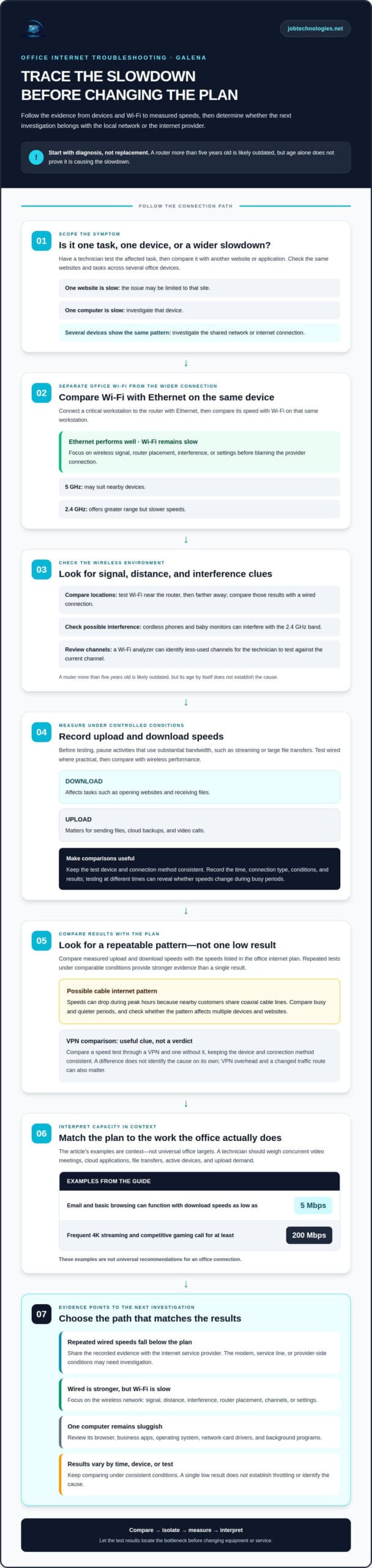
IT professionals troubleshoot slow office Wi-Fi by comparing websites, devices, and wired connections. These tests help identify whether the slowdown comes from one device, the wireless network, or the internet connection itself.
-
Identify Where the Issue Occurs
Have an IT professional test the affected task, then compare it with another website or application. If one website loads slowly while others work normally, the issue may be limited to that site. If one computer struggles but coworkers’ devices perform normally, the technician can investigate that device. This comparison helps prevent a single application or computer issue from being mistaken for an office-wide connection failure.
-
Test Multiple Devices and Websites
Ask the technician to compare connection performance across several office devices, using the same websites and tasks. A pattern across devices points to the shared network or internet connection; a slowdown on just one device narrows the search. The professional can also test a mobile device with Wi-Fi turned off, then compare cellular access with office Wi-Fi. That helps distinguish a website issue from a problem affecting the office network.
-
Use Ethernet for Critical Devices
Have the technician connect a critical workstation to the router with Ethernet and compare its connection speed with Wi-Fi on that same device. If Ethernet performs well while Wi-Fi remains slow, the wireless signal, router placement, interference, or settings deserve attention. The technician can also assess whether the 5 GHz band suits nearby devices, while the 2.4 GHz band offers greater range but slower speeds. This helps isolate wireless performance from the provider connection.
- Ask the professional to review the device’s browser, business apps, and operating system for available updates. An outdated browser or application can affect one task without slowing every device on the network. The technician can also check network card drivers for wired and wireless connections. If one computer remains sluggish across different websites, the professional can review background programs, which may use memory and reduce the computer’s responsiveness.
- Have the technician inspect the router and Wi-Fi environment if multiple devices show similar symptoms. Devices such as cordless phones and baby monitors can interfere with the 2.4 GHz band. A Wi-Fi analyzer can help identify less-used channels, which the professional can test against the current channel. The technician can also compare a wired result with Wi-Fi near the router, then farther away, to see whether signal strength or router performance best explains the slowdown.
How can an IT professional tell if office internet is being throttled?
A technician compares measured upload and download speeds with the office internet plan, then checks whether slowdowns follow a pattern. Testing under controlled conditions helps distinguish possible provider-side issues from wireless problems, network congestion, or equipment limits.
-
Measure Upload and Download Speeds
Have the technician run a speed test and record download and upload results. Downloads affect tasks such as opening websites and receiving files; uploads matter for sending files, cloud backups, and video calls. Before testing, pause activities that use substantial bandwidth, such as streaming or large file transfers. This makes the results more useful for comparison.
The technician should test a wired connection where practical, then compare it with wireless performance. A slow Wi-Fi result alongside stronger Ethernet performance points to the local wireless network rather than the provider connection. Testing at different times can also show whether speeds decline during busy periods.
-
Compare Speeds With the Internet Plan
Ask the technician to compare measured upload and download speeds with the speeds listed in the office internet plan. A consistent gap across wired tests is a reason to investigate the modem, service line, or provider-side conditions. If only wireless results fall short, the technician should examine local network factors before concluding that the provider is throttling traffic.
For cable internet, speeds can drop during peak hours because nearby customers share coaxial cable lines. A technician can compare results from busy and quieter periods, then check whether the pattern affects multiple devices and websites. A single low result doesn’t establish throttling. Repeated results under comparable conditions provide stronger evidence for a discussion with the provider.
- Run a speed test through a VPN and one without it. The technician compares the results while keeping the test device and connection method consistent. A difference can help investigate how traffic is handled, but it doesn’t identify the cause on its own. The professional also considers VPN overhead and whether the VPN endpoint changes the route traffic takes.
- Relate the plan’s capacity to actual office work before recommending a change. Email and basic browsing can function with download speeds as low as 5 Mbps, while frequent 4K streaming and competitive gaming call for at least 200 Mbps. Those examples aren’t universal office targets. The technician weighs concurrent video meetings, cloud applications, file transfers, and the number of active devices, including upload demand.
- Record the time, connection type, test conditions, and results for each comparison. If wired speeds repeatedly fall below the plan’s listed speeds, the technician can share that evidence with the internet service provider. If results vary by device or wireless connection, a network performance review can help pinpoint local bottlenecks before the office changes its plan.
How an IT professional safely power-cycles the modem, router, and computer
Public Wi-Fi can expose office activity to risks on an untrusted network. Unapproved troubleshooting tools may also disrupt settings or create security concerns, so a technician follows the company’s approved process.
- Before restarting equipment, the technician records which devices are affected and notes the current modem, router, and computer status. They identify active calls, file transfers, or other work that could be interrupted. This baseline helps compare performance after the restart and distinguish a temporary improvement from a lasting fix.
- The technician shuts down the affected computer and powers down the modem and router using their normal power connections. For a router restart, the guidance is to unplug it for one or two minutes. Another restart method calls for waiting 10 to 15 seconds before powering modem and router equipment back on. The professional follows the equipment’s appropriate procedure rather than repeatedly switching devices off and on.
- After reconnecting power, the technician lets the network come back online before testing. A router or mesh network may need about five minutes before it’s ready for another speed test. The technician checks the modem and router status indicators, then confirms that the office computer can reach its usual business services. If the connection remains unavailable, they record what happens instead of repeatedly resetting the equipment.
- Once the equipment is online, the technician restarts the computer and compares its connection with the earlier baseline. They check normal office tasks and a download, while noting whether other devices reconnect successfully. If one computer still performs poorly but the rest of the office is stable, the restart may have cleared a network issue while leaving a device-specific problem to investigate.
- A restart can’t resolve every compatibility issue. For DSL and cable service, the technician checks whether the modem supports the speeds offered by the provider. They also assess whether connected devices and networking equipment can support the connection’s speed. Firmware updates or a newer modem model may help achieve the best speeds, while an outdated router or firewall can slow office access.
- When results remain slow after a controlled restart, the technician compares wired and wireless performance and reviews related equipment. A coaxial splitter, for example, may weaken the internet signal; temporarily connecting the modem directly to the wall can help test that possibility. The technician records the change and uses it to guide the next troubleshooting step, rather than treating a restart as proof of a provider fault.
How an IT professional evaluates whether switching to another DNS server could help
A DNS change can affect how quickly devices find a website, but it doesn’t increase the internet plan’s download capacity. A technician first determines whether slow name lookups are contributing to the delay.
- Have the technician identify which actions feel slow, such as opening a new website or accessing a service by name. DNS helps a device locate the server associated with a domain name. If a page takes time to start loading but transfers data normally afterward, name resolution may be worth investigating. Slow downloads across websites point to a different performance issue.
- Ask the professional to record a baseline before changing settings. They can compare how quickly selected business websites begin loading, then check whether the same delay appears across devices. The technician should keep the connection method and test destinations consistent. That makes the comparison more useful than changing DNS while also adjusting Wi-Fi, router, or device settings.
- Check how the office currently receives DNS settings. An internet service provider usually supplies the DNS server a customer uses automatically. A technician can inspect whether the modem, router, or individual computers receive those settings, then document the current configuration. This matters because changing DNS at the router may affect multiple devices, while changing it on one computer provides a narrower test.
- Test an alternate DNS server on a controlled device before making any network-wide change. The technician compares website lookup and loading behavior with the baseline, including services the office uses regularly. The result helps determine whether name resolution is slowing access. A DNS change won’t fix low connection speeds caused by congestion, weak Wi-Fi, or limited plan capacity.
- Record the original DNS settings before the test, including whether they were automatic or manually entered. If the new setting creates access problems, the technician can restore the previous configuration. They should also confirm that business applications, email, and internal services still resolve correctly before considering broader deployment.
- Consider DNS-based server load balancing separately from internet speed. Some organizations use DNS responses to direct requests among server destinations, distributing traffic according to their configuration. Changing the office’s DNS resolver doesn’t automatically create that setup or balance the office’s own network traffic. A technician can assess whether the slowdown involves name lookup, the destination server, or the connection carrying the data.
- Review results across different times and websites before deciding on a lasting change. Performance can vary from minute to minute, and one fast page load doesn’t establish a consistent improvement. The technician uses repeatable comparisons and the office’s actual applications to decide whether a different DNS server helps or troubleshooting should continue elsewhere.
Contacting the internet service provider or a technician
Contact the provider when evidence points beyond one device or the office’s wireless network. Share clear observations so the next troubleshooting step addresses the likely source.
-
Report Outages or Congestion to the ISP
Contact the internet service provider about a persistent connection problem, suspected outage, or slowdown during busy periods. Describe when the issue began, whether it affects multiple devices, and whether wired connections also slow down. Include recorded upload and download results, connection type, and any changes in signal or service. These details help the provider troubleshoot and explain possible causes.
-
Contact an Internet Technician
Arrange professional troubleshooting when the provider connection appears stable but office devices still struggle. Give the technician specific examples, such as dropped VoIP calls, slow cloud uploads, or Google pages loading normally while a business application stalls. Explain which devices and work areas are affected. This helps focus the assessment on the office network, equipment, or application path.
- Prepare a concise incident record before contacting the provider or technician. Note the time of each slowdown, affected services, and whether the problem occurs throughout the day or during peak use. Include recent equipment changes and speed test results. Avoid assuming the provider is throttling bandwidth; observations about timing and affected devices are more useful than an unsupported diagnosis.
- Ask the provider to troubleshoot the service connection and explain any outage or congestion affecting the office. Describe the plan’s listed speeds and compare them with repeated wired test results. If the provider identifies an issue on its side, record the explanation and any recommended steps. If results point to local equipment instead, an IT professional can investigate the router, modem, cabling, or network configuration.
- Give the technician access to the relevant business equipment and a clear description of the work affected. For example, specify whether video calls fail throughout the office or only in one room. The technician can compare wired and wireless behavior, review network settings, and assess whether multiple devices are using the available bandwidth. This makes the investigation specific to the office’s needs.
- Keep provider and technician findings together, including test conditions and changes made. If service improves after a provider-side correction, that helps distinguish it from an internal network fix. If the issue remains, the technician can use the record to avoid repeating steps and focus on remaining causes, such as equipment compatibility or a weak signal.
- If repeated slowdowns are disrupting office work, request professional network troubleshooting to identify whether the issue sits with the local network or the internet service.
JOB Technologies
JOB Technologies helps Galena businesses address office internet problems through Managed IT Services and Network Installation & Management. Turn to the team when slowdowns persist across devices, Wi-Fi and wired connections point to different issues, or provider troubleshooting hasn’t resolved the disruption.
By examining how your network and connected equipment perform, an IT professional can help determine whether the next step involves local network changes or follow-up with your internet service provider. This gives your team a clearer path forward without treating every slowdown as a reason to replace equipment or change plans.
If your office connection continues to interfere with daily work, contact JOB Technologies to discuss the issue.
Build a Clear Path for Your Next Network Decision
For Galena businesses, fixing a slow office internet connection also means clarifying who will coordinate technology decisions and how ongoing issues should be handled. A clear point of ownership helps your team act when connectivity disrupts daily work. A practical plan for fixing a slow office internet connection in Galena connects troubleshooting decisions to your business priorities.
JOB Technologies supports businesses with IT services, including network management and AI implementation. If slow connectivity continues to interfere with your team’s work, contact JOB Technologies to discuss your next step. A focused conversation can help you move forward with a practical plan for your office.
Frequently Asked Questions
How can an IT professional determine whether a router is old or outdated?
An IT professional checks the router’s age, firmware, supported connection speeds, and performance under current office demand. A router more than five years old is likely outdated, but age alone doesn’t prove it causes slow service. The technician can compare wired and wireless results, check whether the router supports the internet plan’s speeds, and assess whether its capacity suits the office’s connected devices and applications.
How often should an IT professional reset an office router?
An office router generally shouldn’t need routine resets as a substitute for diagnosing a recurring problem. A technician can restart it when connection symptoms justify it, then record whether performance changes. For context, restarting a router once every month or two is sufficient for most households, but an office’s needs depend on its equipment and observed issues. Repeated restarts call for investigating the underlying cause.
How can an IT professional improve office network performance?
An IT professional can reduce congestion by prioritizing important business traffic, such as video meetings and phone calls, through Quality of Service settings. They can also divide the network into smaller segments to reduce congestion and improve security. The right approach depends on how the office uses its connection. For example, a team that relies on VoIP calls and cloud applications may need different traffic priorities than a network mainly used for email.
How can a technician determine whether only office Wi-Fi is slow?
A technician compares the same task on a wired Ethernet connection and over Wi-Fi, ideally using the same device near the router. If Ethernet works well while Wi-Fi struggles, the wireless connection is the likely area to investigate. The technician can then map where performance changes across the office, helping distinguish a coverage issue in one work area from a broader router or internet problem.
What can an IT professional do about objects that block the Wi-Fi signal?
An IT professional can inspect router placement and test whether the signal changes when devices move to clearer locations. Large physical barriers between an access point and a workstation can weaken wireless coverage, so the technician may reposition network equipment or adjust access-point placement. They can test the affected work area again to assess the change. The goal is to improve coverage without disrupting wired connections or moving equipment without assessing the network.
What is a good internet speed for an office, and how can a provider assess whether the connection meets its needs?
For a Galena business fixing a slow office internet connection, a good speed depends on simultaneous work, not one universal target. A provider can compare measured upload and download speeds with the plan while considering video calls, cloud applications, file transfers, and connected devices. Upload capacity matters for sending files and calls; download capacity affects receiving data. These workload details help assess whether the connection fits the office’s needs.
How can an IT professional test office internet speed and identify the cause of slowness?
When fixing a slow office internet connection in Galena, an IT professional can record speed-test results, connection type, time, and affected applications under controlled conditions. Comparing wired and wireless results helps distinguish local network issues from service problems. If wired tests also remain below the plan’s listed speeds, the provider can investigate the connection. Tracking affected tasks and devices gives the technician useful context.
How can a technician identify office devices or applications using too much bandwidth?
A technician reviews network traffic and compares activity with reports of slow performance. Large file transfers or streaming across several devices can compete with voice calls and cloud applications for shared throughput. The professional can identify which device or activity coincides with congestion, then consider Quality of Service settings to prioritize essential business traffic. This targets the source of demand instead of broadly restricting office access.