
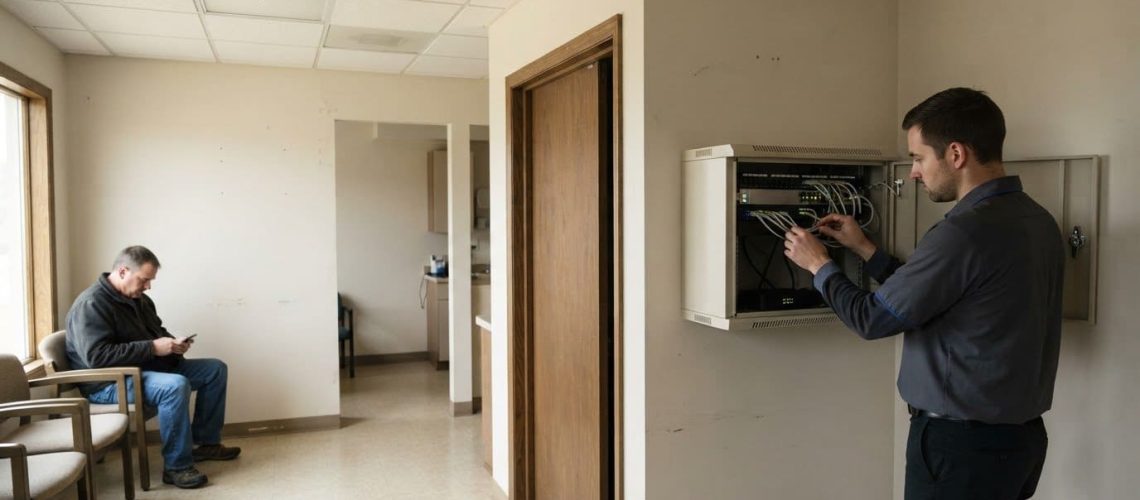
Guest Wi-Fi should be a separate connection, not a shared password for your business network. A secure guest Wi-Fi setup for business starts by isolating visitor traffic, so guests can get online without reaching internal devices or data.
Offering customers and visitors convenient internet access makes sense, but it shouldn’t expose the systems your team relies on. A good setup makes it easy to connect while keeping clear boundaries and oversight.
Learn how network separation and device monitoring help protect business Wi-Fi, and how DNS forwarding and captive portals can add controls. These measures work together to give visitors internet access while keeping your private network separate.
Key Takeaways
- Give visitors internet access through a separate network, keeping business devices and information off-limits.
- Monitor connected devices to spot unusual activity and respond before it affects business operations.
- Use captive portals to set access terms and manage how guests connect.
- Apply DNS controls and network rules to help limit unsafe destinations and unwanted traffic.
- Coordinate network design, access controls, and ongoing management so guest access remains practical and protected.
Monitoring connected devices
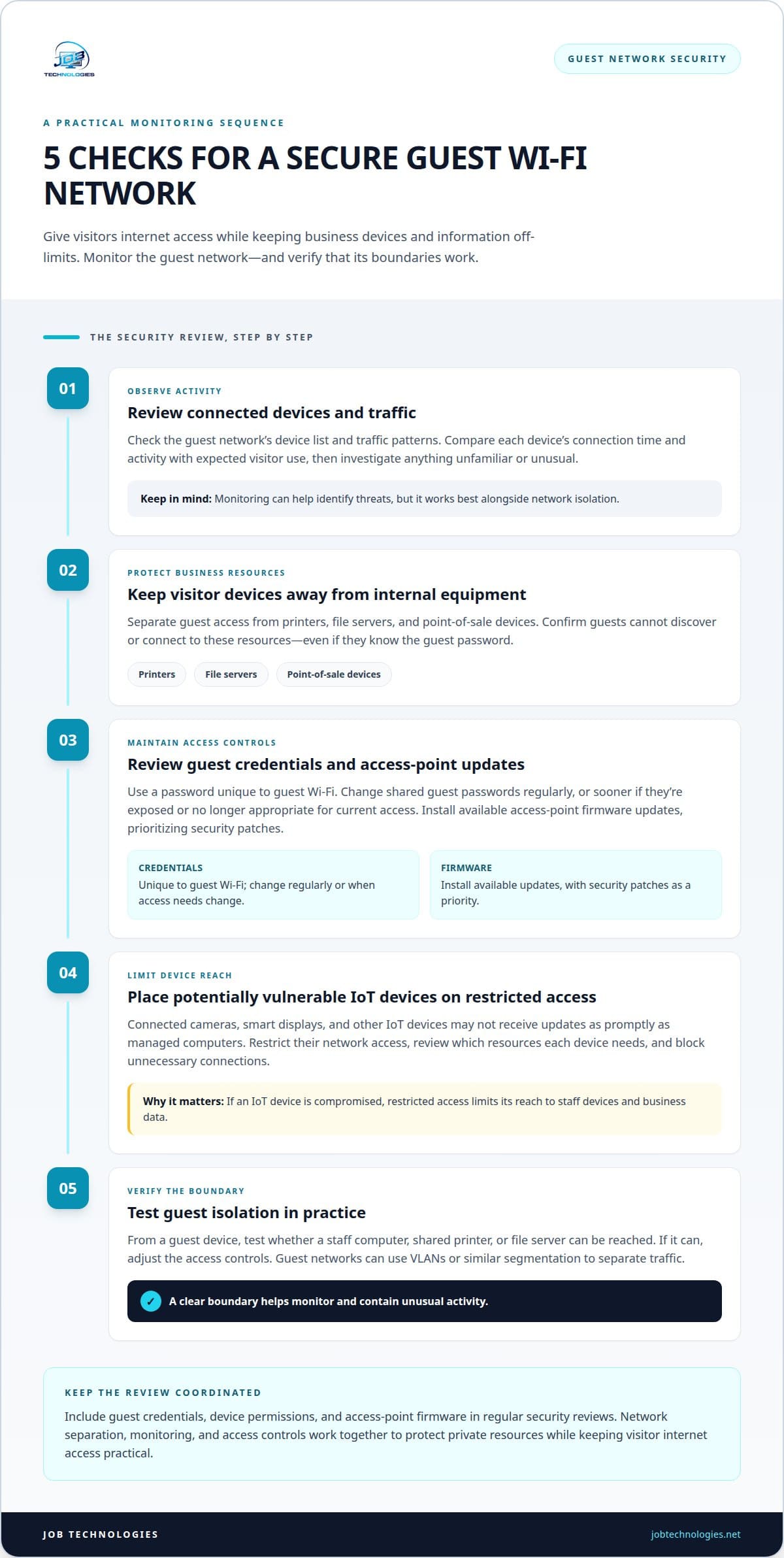
Track guest devices separately from business equipment so you can investigate unusual activity without exposing private resources. Monitoring should cover connected devices, access boundaries, and software updates.
How often should a provider change guest Wi-Fi passwords and update access points? Change shared guest passwords regularly, and sooner if they’re exposed or no longer appropriate for current access. Install available access-point firmware updates, prioritizing security patches.
-
How a provider monitors devices connected to guest Wi-Fi
Review the guest network’s connected-device list and traffic patterns. Compare each device’s connection time and activity with expected visitor use, then investigate anything unfamiliar or unusual. Monitoring can help identify threats, but it works best alongside isolation: a compromised visitor device should not be able to reach the business network.
-
How a provider protects shared devices and private information
Separate visitor access from business equipment, including printers, file servers, and point-of-sale devices. Check that guests cannot discover or connect to those resources, even if they know the guest password. This boundary limits the systems a visitor device can reach and helps protect private information from casual access or a compromised device.
-
How a provider reviews guest access controls and updates
Include guest credentials, device permissions, and access-point firmware in your regular security reviews. Use a password unique to guest Wi-Fi, and change it regularly or when access needs change. Install firmware updates that address security weaknesses. Old credentials and unpatched access points can leave avoidable openings.
- Isolate potentially vulnerable IoT devices from business systems. A connected camera, smart display, or other IoT device may not receive updates as promptly as a managed computer. Placing it on a restricted network limits its access to staff devices and business data if compromised. Review whether each IoT device needs access to other network resources, and block unnecessary connections.
- Confirm that guest isolation works in practice, not just in the network design. Test whether a guest device can reach a staff computer, shared printer, or file server, then adjust access controls if it can. Guest networks can use VLANs or similar segmentation to separate traffic. Clear boundaries also make it easier to monitor and contain unusual activity.
Captive portals and identity-based access
Use a captive portal or a dedicated guest password to control how visitors connect. A portal can display terms, restrict selected websites, and set session limits. A password offers simpler sign-in, but fewer built-in controls.
-
How a provider can help choose between captive portal access and a guest Wi-Fi password
Match the access method to visitor needs and your business’s security requirements. A password can work for straightforward internet access, while a portal can present terms and apply website restrictions. Neither replaces network separation: the guest connection should still be isolated from internal devices and business information.
-
How a provider can set up guest access through a QR code
Configure a QR code to direct customers to the intended guest connection or portal. Place it where visitors can scan it easily, such as a reception desk, and keep private network credentials separate. Test the scan flow on a phone before using it. The code should simplify access, not expose internal resources or replace network controls.
-
How a provider sets website and bandwidth controls
Set web-filtering rules around the sites guests need, using allow lists, deny lists, or content filters. For example, a business can block video-streaming services to help preserve bandwidth for customers and staff. Apply limits to guest traffic without disrupting essential internet access. Review the rules as business needs change, and avoid making routine visitor use unnecessarily difficult.
- Apply identity-based controls consistent with a Zero Trust approach: grant access only to the guest resources needed, rather than trusting every connected device. A portal can require visitors to accept terms before connecting. Limit permissions to internet use, and prevent guest credentials from opening business systems. Encryption protects wireless traffic; access controls determine what the connection can reach.
- Set a clear access window for guest sessions. Guest Wi-Fi can require reauthentication or disconnection after a set period, such as 24 hours. Organizations can also define start and end access times for devices and limit how long guest passwords remain usable. These controls help prevent temporary credentials from providing indefinite access after a visit ends.
- Keep the sign-in process short and easy to follow. A well-designed captive portal can complete login in approximately 15 to 20 seconds. Show the terms clearly, request only information needed for access, and make the next step obvious on a phone screen. For a coordinated review of portal rules and network access, consider professional network access planning.
Captive portal authentication and guest experience
Design the portal with both security and the visitor experience in mind. A clear sign-in, trusted certificate, and concise terms help customers connect without mistaking a legitimate page for a malicious one.
- Keep the authentication flow short and predictable. A well-designed captive portal can complete login in approximately 15 to 20 seconds. Show visitors the business’s network name, the sign-in action, and what happens next. Avoid extra screens that don’t support access or security. A customer who can quickly understand the process is less likely to mistake the real portal for an unexpected prompt.
- Use a valid TLS certificate for the portal’s web address. It lets the browser establish an encrypted connection and display the portal without a certificate warning. Warnings can make visitors question whether the page belongs to the business or encourage them to dismiss a security message. Keep the certificate current, and ensure the portal’s displayed name matches the address visitors reach after connecting.
- Present terms of use before granting internet access. Write them in plain language, explaining acceptable use and any visitor restrictions. Keep the acceptance step visible instead of hiding terms behind a confusing link. For example, make clear that the network provides guest internet access, not access to staff systems or shared business resources.
- Collect only the information needed for the portal’s stated purpose. If you request an email address or other personal details, explain what the form collects and why. The article states that GDPR and CCPA require explicit consent before a business collects personal data. Make any consent action clear, separate, and easy for visitors to understand.
- Review the full sign-in flow on a phone and laptop before making it available. Test the initial connection, certificate display, terms, acceptance, and internet access. Check that the portal doesn’t expose internal pages or send visitors to an unfamiliar destination. Keep the experience straightforward while preserving network separation, so successful authentication grants guest access only.
- Keep the portal’s identity consistent across the network name, sign-in page, and business location. A mismatch can make a legitimate prompt look suspicious, while a malicious look-alike page may imitate familiar branding. Give customers clear instructions for the real sign-in process, and don’t ask them to reuse an account password. Guest authentication shouldn’t require credentials used for work or personal services.
Guest WiFi as a separate connection for customers and employees
Give customers convenient wireless internet without placing employee access and business systems on the same network. Separate connections create clear boundaries for visitors, staff, and the sensitive information each group needs.
- Define what customers and employees need to access before configuring network settings. A visitor may need internet access for email or browsing, while an employee may need approved business applications and shared work resources. Those different needs call for different access rules. Don’t give visitors staff credentials just because a shared password seems easier to manage.
- Assign guest and employee connections to distinct network segments. Separate network names, or SSIDs, can link to different VLANs, keeping guest traffic apart from corporate wireless traffic. For example, a customer joining the guest SSID should not enter the same network segment as a staff laptop. This creates a defined boundary instead of relying on a password alone.
- Limit the guest segment to internet access and deny routes to internal business networks. Keep employee systems, internal communications, and sensitive business information behind separate access controls. If a visitor device carries malware, segmentation can limit its path into employee environments. Test the boundary to confirm that guest connections can’t reach resources intended only for staff.
- Give employees their own access settings rather than extending guest rules to every wireless user. Staff access can reflect work responsibilities, while visitor access stays limited to its purpose. For instance, an employee who needs an internal application should connect through the employee network, not receive broader guest permissions. Review access when roles change so old permissions don’t remain active unnecessarily.
- Check that separation works across the whole network, including wireless access points and wired connections. A guest SSID alone doesn’t ensure isolation if both connections ultimately share unrestricted routes. Confirm that guest traffic stays within its assigned segment and internal resources remain reachable only through approved employee-network settings. This practical test can catch configuration gaps before visitors rely on the connection.
- Make the guest experience distinct and easy to recognize. Display the guest network name where customers can find it, and keep employee credentials private. A clear label such as “Guest WiFi” helps visitors choose the right connection without exposing the private network name. Separate access gives customers useful internet service while employees use the connections and permissions their duties require.
How should a provider set up a secure guest Wi-Fi network?
- Map guest access needs before configuring network equipment. Treat guest Wi-Fi for business security as a network-design task, not a password-only change. Identify the services visitors need, then keep point-of-sale systems, customer databases, and internal communications on a separate network. Guest access should allow internet use without opening a route to business resources. A clear purpose also makes later access tests easier to assess.
- Create a distinct guest network and connect it to a separate VLAN or equivalent segment. Configure firewall rules to block access to internal private address ranges: 10.0.0.0/8, 172.16.0.0/12, and 192.168.0.0/16. Test the guest connection and confirm it can’t reach business devices. Keep employee network permissions separate, so visitors don’t inherit access intended for staff.
- Choose strong encryption and unique credentials for guest access. WPA3 is the current standard for securing wireless connections, while WPA2 remains common and has known vulnerabilities addressed by WPA3. Use a guest password that differs from employee network and business account passwords. Change shared credentials regularly, especially when access needs change or a password is exposed.
- Configure DNS forwarding and filtering as part of the guest network’s outbound rules. For a basic guest wireless router, the recommended DNS firewall rule allows Cloudflare DNS servers and blocks other DNS destinations on UDP/TCP port 53. Advanced wireless routers can also block DNS over TLS and DNS over HTTPS, which may otherwise let endpoints bypass configured DNS security settings.
- Apply current firmware and software updates to routers and guest-network devices. Updates can include security patches, so review them and schedule installation as part of network maintenance. Include access points, not just the main router. After updating, test guest connectivity and security rules to catch any changes affecting access or isolation.
- Set practical limits for guest devices and bandwidth where the router supports them. A crowded guest connection can compete with business traffic, so allocate capacity to preserve resources staff systems need. Match limits to the location’s use, such as customer browsing in a waiting area. Review network logs for unusual traffic and investigate changes that disrupt normal operation.
- Validate the complete setup before visitors use it. Test the guest password, DNS behavior, internet access, and blocked routes to internal systems. A guest network is one security layer, not a replacement for protections that identify and defend devices against online threats. A well-designed guest Wi-Fi for business security setup also needs testing after configuration changes. For professional configuration and ongoing network management, request guest Wi-Fi network support.
JOB Technologies
JOB Technologies helps businesses turn guest Wi-Fi security requirements into a managed network setup. Its Network Installation & Management and Managed IT Services support business network design and ongoing oversight, including guest access controls and separation from internal systems. This can help when visitor access has grown, network settings need a coordinated review, or staff are spending time managing Wi-Fi instead of business operations. A suitable setup depends on how guests connect, which resources employees need, and how the network is maintained. JOB Technologies can align those needs with your broader IT environment. If you’re planning a guest Wi-Fi review or setup, contact JOB Technologies to discuss your needs.
Make guest access part of your ongoing IT plan
Your guest network should keep pace with how your business operates. As customer needs, staff workflows, and connected systems change, revisit who needs access and whether the network design still supports those needs. Treat guest Wi-Fi for business security as an ongoing part of your IT planning, not a one-time configuration. A professional review can help align network controls with daily operations and identify where further support is useful.
JOB Technologies offers Managed IT Services, Network Installation & Management, and AI Implementation to support businesses as their technology needs evolve. If you’re ready to discuss a guest Wi-Fi setup or review, contact JOB Technologies. A clear next step can help you move forward with confidence.
Frequently Asked Questions
Why guest Wi-Fi?
Guest Wi-Fi lets customers connect to the internet without using employee network access. That distinction matters when a visitor’s phone has outdated software or unwanted applications: keeping its connection separate can limit paths to business systems. It also avoids sharing staff credentials for temporary access. For example, a customer in a waiting area can browse online while employees use their own approved network resources.
How do captive portals work and why do they matter?
A captive portal displays a sign-in page before a visitor reaches the internet. It can show terms of use, ask guests to accept them, and apply access rules. The portal also gives visitors a recognizable connection flow, helping distinguish the business’s intended network from an unexpected login prompt. Keep the instructions clear and make the page work well on phones, where many guests connect.
Is Wi-Fi secure?
Wi-Fi can be secured, but a wireless connection isn’t automatically safe just because it has a password. Security depends on encryption, network separation, access controls, and ongoing software updates. A weak or reused password can expose access, while a poorly configured guest network may leave business resources reachable. Treat Wi-Fi as one part of a wider security plan, alongside protections for devices and business accounts.
What is guest Wi-Fi management and what does it actually include?
Guest Wi-Fi management means maintaining visitor access and its security settings over time. It can include overseeing connected devices, adjusting access rules, managing portal terms, reviewing filtering, and updating routers or access points. For businesses in Dubuque, Galena, East Dubuque, Dyersville, Farley, or Peosta, this work helps keep guest access aligned with changing operations and visitor needs.
Should guest Wi-Fi be separated from the business network with VLANs?
Yes. Separating guest and business traffic with VLANs or similar segmentation helps prevent visitors from reaching internal devices and information. A separate network name alone isn’t enough if both connections still have unrestricted routes to the same resources. Account for printers, payment systems, and staff applications, too. Testing the network boundary reveals whether guest access can reach resources it shouldn’t.
What guest Wi-Fi security settings are recommended, including WPA3 and client isolation?
Use WPA3 where supported, unique guest credentials, current router firmware, and network segmentation. Client isolation can also prevent guest devices from communicating directly with each other, reducing exposure between visitors sharing the same wireless network. Review whether settings match the equipment and the access needs of the business. WPA2 remains common, but WPA3 addresses known vulnerabilities associated with the older standard.
How can a provider limit guest Wi-Fi bandwidth and access to unsafe websites?
A provider can limit guest bandwidth and use web filtering to control which sites are reachable. For example, deny lists can block selected destinations, while allow lists restrict access to approved sources. Some routers also support guest-device or bandwidth limits. Configure settings to preserve the internet access visitors need while helping prevent streaming or other heavy use from competing with business-critical traffic.
What risks does guest Wi-Fi pose to business devices, customer data, and compliance?
An unisolated guest connection can create a route to business devices, shared resources, or sensitive information. A compromised visitor device may also generate unusual traffic or try to reach other systems. In retail, mixing guest devices with payment systems can raise compliance concerns. Keep customer records, payment equipment, and internal communications on appropriately separated networks, and review access controls as operations change.