

A convincing email can still be a trap. To learn how to spot a phishing email, look for signs such as an unfamiliar or altered sender address, pressure to act quickly, unexpected requests for sensitive information, and suspicious links or attachments. Phishing messages impersonate legitimate people or organizations to trick you into sharing information, opening a harmful file, or visiting a fake website.
It’s easy to hesitate when a message looks familiar, especially if you’ve already clicked or replied. Pausing before you act can help protect your account details and work device. This guide explains how to spot a phishing email, what to do with a suspicious message, and how to respond if you’ve interacted with one. You’ll also learn when to report it, change affected passwords, or disconnect a work device from the network.
Key Takeaways
- Pause when a message creates urgency or asks for passwords, payment details, or other sensitive information.
- Inspect the full sender address and link destination, and treat unexpected attachments with caution.
- Report suspicious work emails through your organization’s approved process instead of forwarding them to coworkers.
- If you interacted with a malicious message, use a different device to change affected passwords and alert your IT team.
- Disconnect a potentially affected work device from the network and get support from your IT or security team.
1. Requests for sensitive information
Phishing emails impersonate organizations to obtain passwords, financial details, or other sensitive information. A message may claim to come from a bank, employer, payment service, or familiar website. Its link could lead to a fake sign-in page that captures your credentials. Criminals may then use stolen account details for identity theft, unauthorized access, or financial fraud.
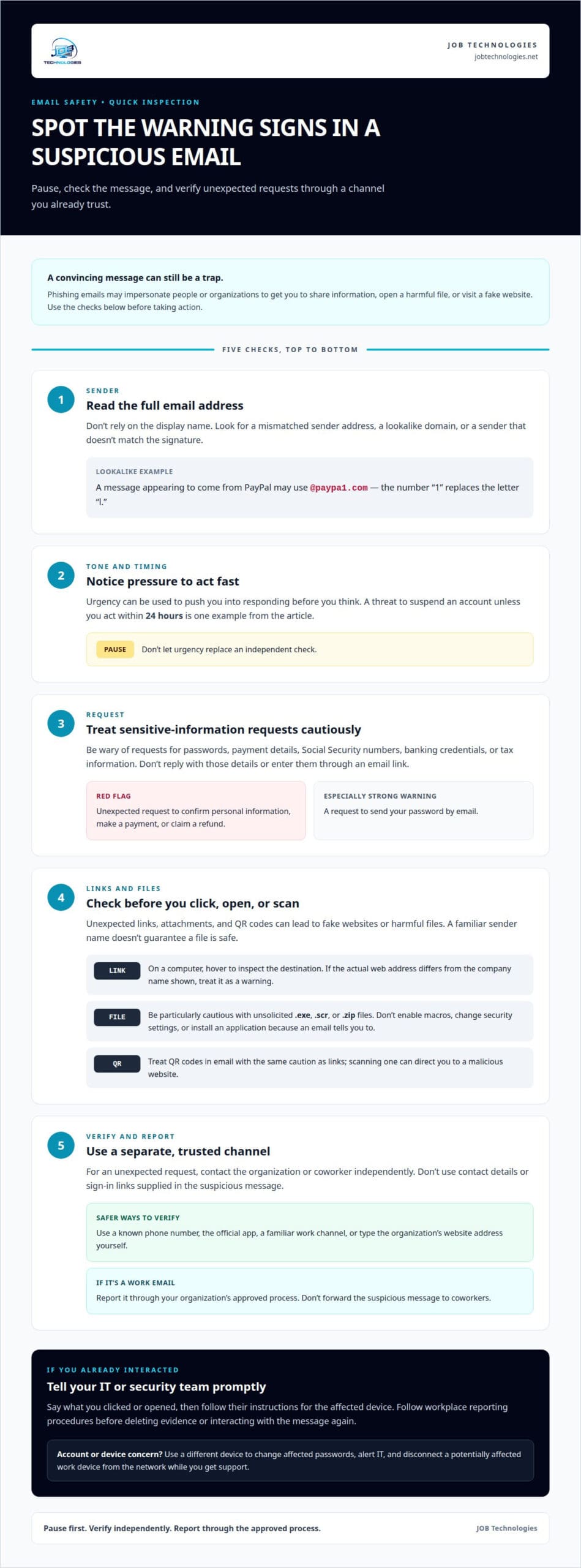
Be cautious if an email asks you to confirm personal information, make a payment, or claim a refund. A message about suspicious account activity might urge you to “verify” your identity by entering a password or card number. Requests for a Social Security number, banking credentials, or tax information also deserve scrutiny. Don’t reply with these details or enter them through an email link.
A request for your password is a particularly strong warning sign. Legitimate organizations won’t ask you to send your password by email. Phishing messages may also seek details that seem less sensitive, such as information about your school or employment. Combined with other personal facts, these details could help someone impersonate you or answer account-recovery questions.
To verify an unexpected request for money or sensitive information, contact the organization through a known channel, such as its official app or a phone number you already trust. To sign in, enter the organization’s website address yourself instead of following the email link. If the request appears to come from a coworker, confirm it through a separate work channel before paying or sharing data.
Email security tools can flag or filter suspicious messages before they reach your inbox, reducing exposure to harmful links and attachments. Multifactor authentication adds a verification step beyond a password, which can help prevent unauthorized access even if credentials are stolen. It doesn’t make a fraudulent message safe, so continue to treat unexpected requests carefully.
- Check what information the email requests. A password, payment detail, or Social Security number should not be supplied in response to an email.
- Verify the sender’s request independently. Use a saved phone number, official app, or familiar work channel rather than the message’s contact details.
- Use multifactor authentication on important accounts. Its extra sign-in step can provide protection if a password is compromised.
These checks are a practical starting point for learning how to spot a phishing email. If a message pressures you to act immediately, pause and verify the request before sharing information, sending money, or signing in.
2. What is a common indicator of a phishing attack?
An unexpected attachment is a warning sign, especially if the message doesn’t explain why the file was sent. A message that appears to come from a familiar supplier might say, “Please review this invoice,” even if you haven’t discussed an invoice. Phishing files can install malware, while links can lead to fake websites designed to capture information. Treat unexpected files cautiously, even when the sender’s name looks legitimate.
Ask yourself whether you were expecting the file and whether it fits the conversation. A document from a known colleague can still be suspicious if the timing or request seems unusual. Sender accounts can be impersonated or compromised. Don’t open attachments or click links in unsolicited messages, including those that appear to come from recognized organizations.
File extensions offer another clue. Be particularly cautious with unsolicited files ending in .exe, .scr, or .zip. Don’t enable macros, change security settings, or install an application because an email tells you to. If a business says a file is essential, confirm the request through a contact method you already trust.
Links can hide their true destination. On a computer, hover over a link to inspect its address. If the company name shown differs from the actual web address, treat that as a warning. Don’t use a suspicious link to sign in. Instead, open the organization’s official app or type its website address yourself. Treat QR codes in email with the same caution: scanning one can direct you to a malicious website, a tactic known as quishing.
Take these steps when a message includes an unexpected attachment, link, or QR code:
- Leave the file unopened and don’t scan the code or follow the link.
- Confirm the message using a known phone number or separate communication channel.
- Report suspicious work messages through your organization’s approved process. Don’t forward them to coworkers.
If you’ve opened a suspicious file or followed its link, promptly report the incident to your organization’s IT or security team. Tell them what you clicked or opened, and follow their instructions for the affected device. Reporting quickly helps the team assess the account or device and decide what response is needed. Follow workplace reporting procedures before deleting evidence or interacting with the message again.
3. Common signs of malicious emails
Common phishing tactics include impersonating a trusted sender, creating urgency, and directing you to a fake sign-in page. Red flags include a mismatched sender address, an unexpected request, a generic greeting, or a link that leads somewhere different from the destination its text suggests.
Read the sender’s full email address, not just the display name. A message that appears to come from PayPal but uses a lookalike domain such as @paypa1.com may be malicious. The number “1” replaces the letter “l,” making the address seem familiar at a glance. Also compare the sender with the signature: a mismatch can signal impersonation.
Look at how the message addresses you and what it asks you to do. “Dear Customer” may be a generic greeting, while a threat to suspend your account unless you act within 24 hours pressures you to respond without thinking. A message can also use a correct name or workplace detail and still be fraudulent. Spear-phishing targets a specific person or organization with tailored information.
Grammar can provide clues, but it isn’t a reliable pass-or-fail test. Typos, incorrect details, or awkward wording may signal a scam, but polished writing doesn’t prove a message is legitimate. AI can help create fluent phishing emails. Check whether the request makes sense in context, especially if it asks for credentials or a credit card number, or tells you to change security settings.
A fake website may copy a familiar sign-in page, then ask for information the real service wouldn’t need. Before entering credentials, inspect the address in your browser. An outdated logo, misspelled brand name, or unexpected request for a credit card number may expose an imitation. A padlock icon alone doesn’t prove that a site belongs to the organization it claims to represent.
- Compare the sender’s full address with the organization’s known address.
- Check whether the message names you correctly and whether its request fits your recent activity.
- Inspect the website address before entering credentials or personal details.
- Treat several warning signs together as a reason to stop and report the message.
One clue alone may not settle whether an email is fraudulent. A familiar sender name, correct grammar, or company logo can be copied. Assess the sender, wording, request, and destination together. If the message includes a suspicious address and an urgent demand, don’t use its link or reply. Report it through your organization’s established process so the right team can assess it.
4. What Should You Do If You Get a Suspicious Email?
Start by checking the complete email address, not only the sender name. A message labeled “Payroll” could come from an unrelated domain, or use a lookalike such as “paypa1” instead of “paypal.” Added numbers, swapped letters, extra words, and unfamiliar domain endings can signal an impersonation attempt. Compare the address with previous legitimate messages from that organization, but remember that a familiar account can also be compromised.
Look for details that don’t fit the sender or conversation. A message from a manager requesting an urgent payment from an unfamiliar address deserves independent confirmation. Typos, an incorrect name, or a signature that conflicts with the sender address add to the concern. Legitimate company emails can contain ordinary errors, so a typo alone doesn’t prove fraud. Consider the address, message, and request before replying or acting.
Phishing emails may differ from legitimate company messages in their altered sender details, unexpected demands, or links designed to capture information. A suspicious message can still look polished and display the correct logo, so verify unusual requests through a separate, trusted channel. Don’t reply, use contact details in the message, or click an unsubscribe link to investigate.
To report a suspicious email in Gmail, open it, select the message’s More menu, and choose “Report phishing.” In Outlook, select the message and use the “Report” option to report it as phishing, when available. If you suspect fraud affecting you, submit a report through the Federal Trade Commission’s ReportFraud service. At work, follow your organization’s reporting process instead of forwarding the email to coworkers.
Before reporting, preserve the message and note what concerned you, such as a mismatched domain or an unexpected payment request. If the email claims to come from a bank, contact the bank through its official app or a phone number you already trust. If it appears to come from a colleague, confirm through a separate work channel. This lets you reach the real source without engaging with a possible attacker.
- Check the full sender address for substitutions, added numbers, or a domain that doesn’t match the claimed organization.
- Use Gmail’s phishing report control or Outlook’s report option, then follow workplace procedures for work email.
- Use the Federal Trade Commission’s ReportFraud service for suspected fraud, and report financial activity to your bank or card issuer.
- Don’t reply, click links, or forward a suspicious work message to coworkers.
Reporting gives the relevant service or workplace team a chance to assess the message. A clear report can also help others avoid acting on an email that only appears to come from someone they trust.
5. Steps to take after interacting with a malicious email
Act promptly if you clicked a link, entered credentials, or opened an unexpected file. Stop interacting with the message, and don’t revisit its website or download anything else. A click doesn’t prove malware was installed, but a suspicious domain or file can put an account or device at risk. Note what happened, including the link, file, or information you shared.
If you entered a password, passphrase, or PIN, change it using a different device. Update credentials for every affected account, especially if you reused the same password elsewhere. Don’t use the email link to access your account. Open its official app or type its known website address yourself, then choose a new password you don’t use for other accounts.
If you opened a file or interacted with a work device, disconnect it from the network and contact your organization’s IT administrator or security team. Tell them which message you opened, what you did, and when. Don’t try to fix the issue by installing software, deleting files, or changing security settings. The IT team can assess the device and guide you on next steps.
For a personal device, stop interacting with the suspicious message and review what information you exposed. If you entered banking or card details, contact your bank or credit card company and report the activity. If you shared credentials, secure the affected accounts from another device. Keep the suspicious email available in case your workplace or account provider needs details to investigate.
Use this sequence to keep your response clear:
- Stop clicking, replying, downloading, or entering information.
- Record whether you clicked a link, opened a file, or shared credentials.
- Disconnect a potentially affected work device from the network.
- Contact your IT or security team if the device or account belongs to work.
- Change affected passwords from a different device and report exposed financial details to your bank or card company.
Consider what the message prompted you to do. A link may have opened a page that collected credentials; an attachment may have asked you to install an application or enable a setting. Share these details with your IT team instead of trying to decide on your own whether the device is clean. This helps them determine what to assess next.
Recognizing phishing attacks early helps you respond with useful information instead of panic. If your organization needs ongoing help strengthening its response to email threats, get support for your business’s cybersecurity.
JOB Technologies
JOB Technologies helps businesses manage their technology with Managed IT Services and Network Installation & Management. If phishing concerns go beyond a single suspicious message, these services offer a practical next step for reviewing your business’s broader IT environment and network needs.
If an employee interacts with a malicious email, follow your organization’s incident process and involve its IT team. For ongoing support with business technology, JOB Technologies can work alongside your team to manage your IT needs. The next step depends on what happened and the support your business needs.
Contact JOB Technologies to discuss IT support for your business.
Build a More Confident Response
Knowing how to spot a phishing email is a useful first step. A stronger response makes it easy for your team to pause, report concerns, and get help when a message puts work accounts or devices at risk. Clear internal reporting steps can reduce hesitation and help your organization give its IT team the details needed to respond.
For ongoing business technology support, JOB Technologies can help your team consider how Managed IT Services, Network Installation & Management, and AI Implementation fit its needs. If you’re looking to strengthen your approach to email security, contact JOB Technologies to discuss support for your business.
A thoughtful next step can help your team feel more prepared when suspicious messages arrive. Keep building confidence, one careful decision at a time.
Frequently Asked Questions
What is phishing?
Phishing is an attempt to make a fraudulent message, website, or other communication seem trustworthy so you’ll disclose information or take an unsafe action. A fake delivery notice, for example, might ask you to sign in to view a shipment, while a fraudulent invoice could prompt you to make a payment. The attacker may be trying to capture account credentials, obtain personal details, or get you to install malicious software.
What Should You Do If You Get a Suspicious Email?
Don’t interact with the message while you assess it. Don’t reply, call a number in the email, or click an unsubscribe button. If it concerns a work account, follow your organization’s reporting process so the security team can review it. For a personal account, use the email service’s reporting feature, then remove the message if appropriate. Keep it available if your organization needs it for an investigation.
What is a common indicator of a phishing attack?
An unexpected message asking you to act or provide information is a common warning sign. An email might claim a package is delayed even though you haven’t ordered anything, or request a new payment method without explanation. Treat this mismatch as a reason to pause. Check whether the event fits your recent activity before responding or using any details in the message.
What are common signs of a phishing email?
Warning signs include an unfamiliar sender, an urgent demand, an unexpected request, or details that don’t fit your situation. A message might refer to a purchase you didn’t make or claim you’ll lose access unless you act immediately. These clues can appear together or separately. A polished design doesn’t prove the sender is genuine, so consider the request and context, not just the email’s appearance.
How can you check whether an email sender address is legitimate?
Compare the full address after the “@” symbol with a previous message you trust or the address shown in the organization’s official app. Look closely for added words, substituted letters, or numbers, such as a “1” in place of an “l.” Don’t rely on the display name alone. If the message claims to be from a colleague, confirm through a separate work channel.
How do you safely inspect suspicious links and attachments?
Don’t open an unsolicited attachment to see what it contains. On a computer, hover over a link to reveal its destination without clicking; on a phone, don’t tap it. For an account request, open the official app independently. If you need to access a file or link, first confirm its purpose with the sender through a contact method you already trust.
What should you do if you receive a suspicious email?
Use your email provider’s report option and follow your workplace’s reporting rules for business messages. Don’t forward a suspicious work email to coworkers, because your organization may have a specific way to handle it. If the message claims to come from a bank, payment service, or supplier, reach that organization through contact details you already trust. Delete the message only after following any reporting instructions.
What should you do if you clicked a phishing link or shared personal information?
Stop interacting with the page and secure affected accounts from a different device. Change any password you entered, including on other accounts where you reused it. If you provided payment details, contact your bank or card issuer and explain what you shared. For a work device, promptly contact your IT team and describe what you did. Businesses in Dubuque, Galena, East Dubuque, Dyersville, Farley, and Peosta can turn to JOB Technologies for IT support.