

Moving business email to the cloud doesn’t have to mean losing your messages. A planned migration can transfer historical mailbox data ahead of time, then synchronize recent changes during the final cutover. The overall cost depends on the work required to move and protect your email, as well as the cloud licenses and storage your business needs.
It’s understandable to focus on keeping messages, calendars, contacts, and everyday communication available during the change. A careful plan accounts for the systems and data involved, the timing of the switch, and the checks required afterward, helping reduce disruption.
This guide explains how migration support, email continuity, security, storage, and licensing affect cost. It also considers how a cloud email subscription may replace some infrastructure spending, and what to weigh when comparing ongoing costs with your business’s needs.
Key Takeaways
- Migration effort depends on the mail systems, mailbox data, shared resources, and permissions that need to move.
- Staged transfers and a planned cutover can help reduce disruption and protect email continuity.
- Security settings, backup planning, and where data is stored all matter when assessing cloud email risks.
- User licenses and storage affect ongoing costs, and capacity can be adjusted as business needs change.
- Compare subscription costs with the email infrastructure spending cloud services may replace to understand the broader financial impact.
1. Migration help included with hosting and email plans
Migration support can cover the move from a legacy mail server to a modern cloud platform. The cost of moving business email to the cloud depends on the systems and data involved. Transferring a few individual mailboxes differs from moving mailboxes, shared folders, calendars, and permissions across a business. Microsoft 365 and Google Workspace are cloud platforms businesses can evaluate.
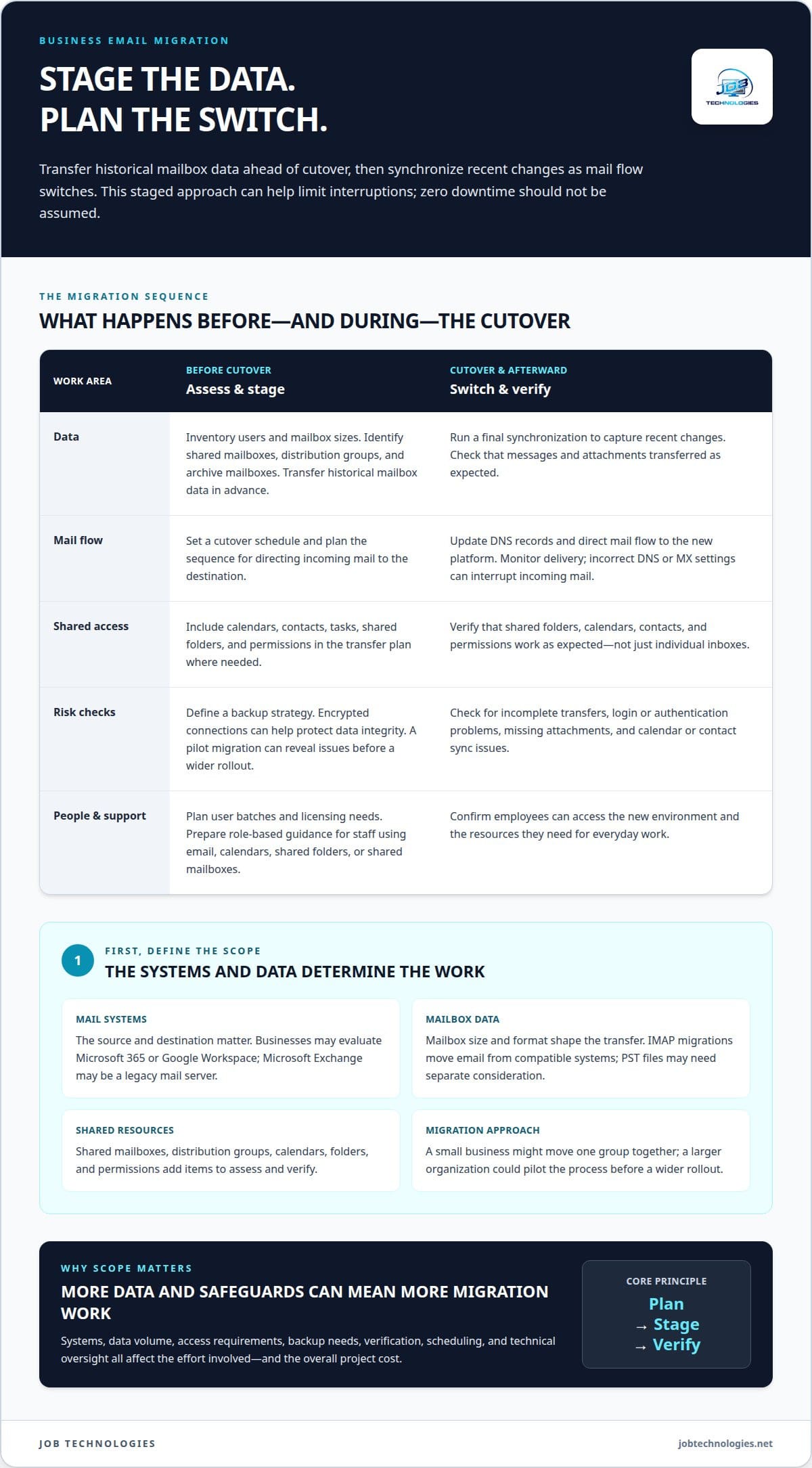
An assessment establishes what needs to move. It can review users, mailbox sizes, shared mailboxes, distribution groups, and archive mailboxes. An archive mailbox, for example, adds data to transfer even if its owner rarely opens it. This inventory helps determine the schedule, licensing needs, and level of migration support.
Planning turns the assessment into a practical sequence. It can set timelines, user batches, licensing needs, security settings, backup strategies, and risk controls. A small business might move one group together, while a larger organization could use a pilot migration to test the process before a wider rollout. These choices affect the work involved.
The transfer may include more than inbox messages. Email, contacts, calendars, tasks, shared folders, and permissions can all be part of the migration. For example, a shared calendar’s access settings need to carry over so colleagues can keep using it. The source and destination systems, data volume, and access requirements define the transfer scope.
Migration tools can use encrypted connections to help protect data integrity. A backup strategy also gives the project team a recovery point if a problem arises. These safeguards are part of the migration design, and the preparation and technical oversight they require can affect the project’s overall cost.
Cutover is when mail flow switches to the new platform. It may involve updating DNS records, directing incoming messages to the destination, and performing a final synchronization. Transferring historical mailbox data in advance leaves only recent changes for the final sync. This staged approach can help limit interruptions to everyday email.
Zero downtime is an aim, not something to assume. Transferring data in advance, scheduling the cutover, and checking the results can help limit disruption. The right approach depends on the source system and migration scope. A pilot can uncover issues before the main rollout.
Support can include user guidance, too. Short, role-based training can show staff how to find email, use calendars, and access shared folders on their devices. Employees who manage distribution groups or shared mailboxes may need guidance tailored to those tasks.
A plan for moving business email to the cloud should connect support tasks with the systems, data, schedule, continuity measures, and user guidance involved. That makes it easier to understand the migration work, rather than treating it as simply copying messages to cloud infrastructure.
2. Will I lose email during a migration?
Email loss isn’t inevitable. A migration team can transfer existing mailbox data before cutover, then synchronize recent changes as mail flow switches. Planning around the source system helps limit disruption, while accounting for delivery, access, and verification risks.
The starting point matters. Google Workspace and Microsoft 365 are cloud platforms, while Microsoft Exchange may run as a legacy mail server. IMAP migrations transfer email from compatible mail systems, and PST files can contain mailbox data that needs separate consideration. The source, mailbox size, and data format shape how the team plans the transfer.
In a staged migration, historical messages move before the final switch. The final synchronization captures newer changes, reducing the amount of data to transfer during cutover. The team may then update DNS records, direct mail flow to the destination, and monitor delivery. Incorrect DNS or MX settings can interrupt incoming mail, so timing and configuration matter.
Continuity planning also covers shared mailboxes, folders, and permissions. A mailbox may transfer successfully but still cause problems if a colleague loses access to a shared folder. Calendar and contact synchronization may need attention, too. The migration plan should include checks for these resources as well as messages and attachments.
To reduce the risk of email loss or delivery disruption, the team stages historical data, schedules the cutover, and performs a final synchronization. It also plans for issues such as authentication problems, missing attachments, and incorrect DNS or MX records.
Backup planning adds another safeguard. Before migration, the team defines a backup strategy for the data being transferred. Afterward, it verifies that mailboxes, calendars, contacts, and permissions work as expected. These checks can reveal incomplete transfers or access problems before employees rely on the new environment.
Cloud email providers may use multiple redundant sites to support uptime and disaster recovery. However, service uptime and migration success are separate concerns. Microsoft’s service-level agreement (SLA) relates to hosted-service availability, not whether every message or calendar item transferred correctly. Migration checks are still essential.
Risks include unexpected downtime, missing messages or attachments, calendar and contact synchronization problems, login issues, and incorrect mail-routing settings. A pilot migration can expose workflow problems before a larger rollout. For businesses moving from Exchange, IMAP, or PST-based archives, the sequence can be tailored to the systems and data involved.
The cost of continuity measures depends on the source systems, data volume, backup requirements, and verification needed afterward. Defining the migration scope makes these tasks visible before cutover, helping the business understand the support the transition requires.
3. Security updates and compliance risks
Security planning affects both the migration and the way cloud email is managed afterward. Moving business data into a new environment means the plan should account for access, configuration, backups, and where data is stored. For example, a mailbox containing customer records may need different handling from a general team inbox.
Start by identifying the information your business handles and who needs access to it. The migration assessment can identify sensitive mailboxes, shared accounts, and distribution groups, then map their access needs to the destination platform. This helps avoid transferring permissions too broadly. A shared mailbox used by finance, for instance, should remain accessible to authorized users without exposing it to unrelated staff.
Prepare security settings before cutover. The migration plan can document required settings, apply them in the cloud environment, and confirm they work after accounts move. The specific configuration depends on the platform and business requirements. A successful message transfer alone doesn’t show that access is properly controlled or the new environment is ready for daily use.
Data location is another planning factor. Establish where your cloud email data will be physically stored, then consider how that location relates to security and compliance needs. The answer can affect platform selection and migration planning, as well as which data belongs in a mailbox and how existing archives are handled.
GDPR is relevant to businesses with obligations under that regulation. According to the European Union, businesses need to follow GDPR compliance regulations. For those organizations, a cloud email migration should account for compliance alongside technical transfer tasks. That means considering the data involved, its storage location, and the security settings applied to the destination environment.
Practical migration safeguards include documenting intended access, backing up data, and reviewing the destination configuration after transfer. A post-migration review can confirm users have the access they need and sensitive shared mailboxes haven’t inherited unintended permissions. These checks help distinguish a complete data transfer from a secure, usable email setup.
Security planning continues after migration. The business needs a clear process for reviewing account access when staff roles change and maintaining its chosen security settings. When an employee leaves, for example, their mailbox access and shared-folder permissions may need attention. Clear ownership of these tasks reduces the risk of outdated access going unnoticed.
These requirements can affect project scope because data review, security configuration, backup planning, and compliance considerations take different levels of effort. A well-defined plan connects each task to the business’s actual email environment. That gives decision-makers a clearer basis for assessing migration support without treating security as an optional extra.
4. Scalable user licenses and storage
Cloud email capacity can change as your business needs evolve. Adjusting user licenses or storage can accommodate staffing and mailbox requirements. A business adding employees may need more user licenses, while an existing team with growing mailboxes may need more storage. These are separate planning decisions, even when both affect the subscription.
Start with a user inventory. The migration assessment can identify active users, shared mailboxes, distribution groups, and archive mailboxes. This helps distinguish individual accounts from shared email functions. A new employee who needs a personal mailbox, for example, may require a different license than someone who needs access to an existing shared mailbox.
Mailbox size also shapes the storage plan. An established account with years of messages may need more capacity than a newly created account. Reviewing mailbox sizes before migration helps estimate storage needs at the destination. The team can then plan for existing data and expected use without treating every mailbox alike.
Account type matters, too. Email integration depends on the type of email account, and additional mail accounts can be added. A business may need to account for a general department address as well as individual employee accounts. Identifying how each address is used clarifies which accounts must move and how staff will access them.
Growth and change can alter requirements after migration. Staffing changes may add or remove user accounts, while retaining more email may increase storage needs. Cloud capacity can be adjusted by changing licenses or storage to suit business needs. Periodic reviews help keep capacity aligned with use rather than setting it once and leaving it unchanged.
License planning should connect account needs with the selected cloud email service. Microsoft 365 and Google Workspace are options businesses can evaluate, but account types and plan features differ. The migration plan should align the destination with required users, mailboxes, and storage. It should also account for shared resources, so a license estimate reflects how employees actually use email.
To understand cost implications, separate one-time migration requirements from ongoing capacity decisions. The number and type of accounts, existing mailbox sizes, and storage needs all shape the configuration. A careful inventory can identify accounts requiring individual access, shared access, or archive handling before the move.
As staffing and email volumes change, reviewing license and storage levels helps keep capacity aligned with use. A growing team may need more user accounts, while a business retaining larger archives may need to adjust storage. These distinctions clarify what drives ongoing cloud email costs and where flexibility matters.
5. Cost savings from cloud email
Cloud email changes the cost structure, but it doesn’t automatically make email cheaper. A business may replace some email infrastructure spending with a monthly or annual subscription. The comparison shifts from maintaining existing infrastructure to paying for cloud service and the capacity the business uses. The key question is whether those costs fit your actual email needs.
Build the comparison around the current setup and the proposed destination. For example, a business using an on-premises mail server can identify the infrastructure spending tied to email, then compare it with a subscription for Microsoft 365 or Google Workspace. Keep the services being compared consistent. Email-only costs should not be weighed against a broader plan without accounting for the additional services.
Licenses and storage affect the recurring subscription. A growing team may need licenses for additional users, while larger mailboxes may call for more storage. Staffing changes can also reduce the number of active accounts. Reviewing user types and mailbox sizes helps separate needed capacity from capacity the business no longer uses.
Migration support belongs in the overall cost picture, too. Assessment, data transfer, backup planning, cutover, and post-migration checks all involve work. The source environment matters: moving from an existing cloud platform may require a different plan than transferring legacy server email and archived data. A clear scope separates these one-time transition tasks from recurring subscription costs.
Security and continuity choices can also affect project scope. A business migrating shared mailboxes, for example, may need permission checks alongside message transfer. Backup planning and post-migration verification add tasks, but leaving them out of a cost comparison can hide work needed for a complete transition. Compare like with like by including the support required to protect data and restore normal access.
Use a straightforward cost review. First, list current email infrastructure spending. Then identify destination licenses, storage needs, and subscription billing periods. Separate migration work from ongoing costs, and note which capacity can change as staffing or mailbox needs evolve. This shows whether cloud email replaces existing spending or adds a subscription without removing much infrastructure cost.
The cost depends on the case and is provided after a quote request; migration scope, licenses, storage, and continuity requirements shape it. To discuss the cost factors for your email transition, request a cloud email cost review.
JOB Technologies
JOB Technologies helps businesses consider cloud email as part of their wider technology environment. Its Managed IT Services support the systems and infrastructure employees rely on every day. This broader perspective is useful when email changes need to work alongside existing business technology.
Turn to JOB Technologies when you’re assessing how a cloud email transition fits your organization’s IT needs or want help managing the broader environment around the change. Start with a conversation about your current setup, email requirements, and business priorities.
Contact JOB Technologies to discuss your business email needs.
Set your email transition up for what comes next
A cloud email decision can shape more than where messages are stored. It can influence how employees connect, how business information is managed, and how future technology changes fit together. Before moving business email to the cloud, consider email’s role as your organization grows and updates its systems. A practical plan should support those priorities without adding complexity your team doesn’t need.
JOB Technologies can help you consider email alongside broader business technology needs. If your plans also involve network changes or AI adoption, its Network Installation & Management and AI Implementation services may be relevant to the conversation. Keeping these needs in view can clarify next steps and align them with your operations.
Share your business priorities and email transition goals with the team. Contact JOB Technologies to discuss a practical next step for your organization. A thoughtful plan can help your team move forward with greater clarity.
Frequently Asked Questions
Will I lose email during a migration?
Email can be lost or temporarily unavailable if transfer settings, account mappings, or mail routing are incorrect. A migration plan reduces these risks by accounting for message history, attachments, aliases, and user access. An employee who uses an alternate email address, for example, needs that address linked to the correct destination account. After the transition, reviewing important folders and recent messages can help identify problems quickly.
How can a provider move a business email account to the cloud?
A provider begins by identifying the current mail system, account structure, and business requirements, then mapping them to a cloud destination. The work may include setting up accounts, transferring data, and coordinating domain mail routing. A business using an address such as sales@company.com needs that address connected to the correct cloud mailbox. The provider can also help employees reconnect their email apps after the change.
Which cloud email providers are best for small businesses: Microsoft 365, Google Workspace, or others?
The right choice depends on how your team works, which applications it already uses, and the administration features it needs. Microsoft 365 and Google Workspace are both options, and JOB Technologies supports both. A business centered on Microsoft applications may prefer a consistent environment, while a team already using Google tools may value continuity. For companies in Dubuque, Galena, East Dubuque, Dyersville, Farley, and Peosta, JOB Technologies can help assess the fit.
How much does cloud business email cost per user in the United States?
Per-user subscription costs depend on the selected provider, license type, storage needs, and any bundled services. Migration work is a separate consideration, shaped by the source system, mailbox data, and support required. There isn’t one figure that applies to every business. For JOB Technologies services, pricing depends on the case and is provided after a quote request; the assessment and proposal reflect the business’s needs.
How can a provider migrate email, contacts, calendars, and shared mailboxes?
A provider maps each person and shared resource to its destination, including who owns it and who needs access. A shared calendar used by sales and operations, for example, needs its access arrangements carried over, not just its events. Contacts may also need to stay associated with the right users. These mappings help employees find information after the move and clarify which accounts need individual or shared access.
How long does a business email migration take, and what downtime should I expect?
Migration duration and interruption depend on the source platform, data volume, number of accounts, and approach. Moving a large archive or coordinating several user groups can add planning and transfer work. A provider can transfer data in advance and schedule the mail-routing change for an agreed window. Employees may need to sign in again or reconnect apps, so communicating these changes helps limit confusion.
What security, privacy, and compliance requirements apply to cloud business email in the US?
Requirements depend on the business, the information it handles, and any applicable industry or contractual obligations. A healthcare organization, for example, may need to handle sensitive patient information differently from routine internal messages. Plan for appropriate access, storage location, security settings, and data retention. JOB Technologies offers Compliance Assistance to help businesses consider compliance as part of their broader technology environment.
What are the risks of moving business email to the cloud, and how can a provider reduce them?
Risks include disrupted mail delivery, incomplete data, access problems, and users being unable to sign in on their devices. A provider can reduce operational impact by documenting account mappings, planning the changeover, and confirming key users can access their email afterward. A business can also name an internal point person to collect employee reports, such as a missing shared folder, and route them for timely resolution.