
Remote work is practical when employees can reach the systems they need without leaving access unmanaged. For businesses in Dubuque, remote access solutions for employees can combine authorized desktop access with clear user-account and password management. This gives teams a structured way to work from different locations while tying access to individual users.
Remote access should be both convenient and secure. Key considerations include how employee identities are managed, which systems each person can reach, and how permissions change when roles or staffing change. This article explains how remote desktop access works, the security risks to consider, and how account management can help address them. You’ll also learn what to expect from a professional setup and how managed IT support can fit your plans.
Key Takeaways
- Learn how professionally configured remote desktop access can give employees access to approved work systems from different locations.
- See how a provider can match remote access software to your business’s workflows, existing systems, and security needs.
- Understand which internet and equipment considerations can affect employees’ remote work experience.
- Explore common remote access security risks and how managed IT support can help reduce them.
- Compare VPN, remote desktop, and cloud access approaches to identify which best fits your organization’s needs.
Professionally configured remote desktop access from anywhere with authorization
For healthcare organizations using CMS systems, the access method has a specific requirement. According to the Centers for Medicare & Medicaid Services, systems used for remote access must use a CMS-approved secure VPN or VDI solution to protect sessions and client-based applications. Finance employers should have their compliance lead map applicable obligations to the access design before deployment.
A remote desktop connection lets an employee use an authorized computer or work environment from another location. A professional setup starts by identifying the employee, their duties, and the applications they need. For example, an accounting employee may need financial software but not every shared folder. Limiting access to work-related systems keeps permissions focused.
Next, the provider configures user accounts and permissions. Each employee should have an individual account rather than sharing credentials with a coworker. The access plan can specify which systems each account can reach and who approves changes. When someone changes roles or leaves, updating or disabling their account helps prevent outdated access from lingering.
- Identity: Match each account to a specific employee and role.
- Permissions: Grant access to the applications and files needed for assigned work.
- Authentication: Apply appropriate sign-in safeguards to remote sessions.
- Account changes: Update permissions when job duties change and remove access when it is no longer needed.
Password management is part of the setup, not an afterthought. A provider can establish account processes, guide employees on handling credentials, and define how to reset access when a user is locked out. Shared logins make it harder to trace activity to an individual, so personal accounts provide a clearer basis for managing access. Controls should suit the organization’s systems and work practices.
Remote access also needs a defined route into the business environment. A provider can assess whether a VPN or virtual desktop infrastructure, or VDI, suits the applications and security requirements. The Centers for Medicare & Medicaid Services says systems used for remote access must use a CMS-approved secure VPN or VDI solution to protect sessions and client-based applications. A remote desktop setup should also specify permitted devices, session protections, and what happens when a connection ends.
Before rollout, a professional can test access with representative employee roles. For example, testing can confirm that a remote employee can open an approved work application while someone in a different role cannot access restricted files. The provider can document permissions and adjust them as business responsibilities change. This gives Dubuque employers a clearer way to offer remote desktop access while tying authorization to each employee’s work.
How can a provider help small businesses in Dubuque choose remote access software?
The right software is the option that fits employees’ work, systems, and security needs. A provider starts by mapping work tasks to the applications people use. For example, someone who needs one scheduling system has different access needs from an employee using several office applications. This assessment helps avoid choosing a tool based only on popularity or a long feature list.
Next, the provider reviews the existing environment, including the business network, work computers, operating systems, and applications employees need remotely. A legacy accounting program, for instance, may work differently from a browser-based customer platform. Compatibility matters because the selected software must connect employees to the right resources without disrupting normal office workflows.
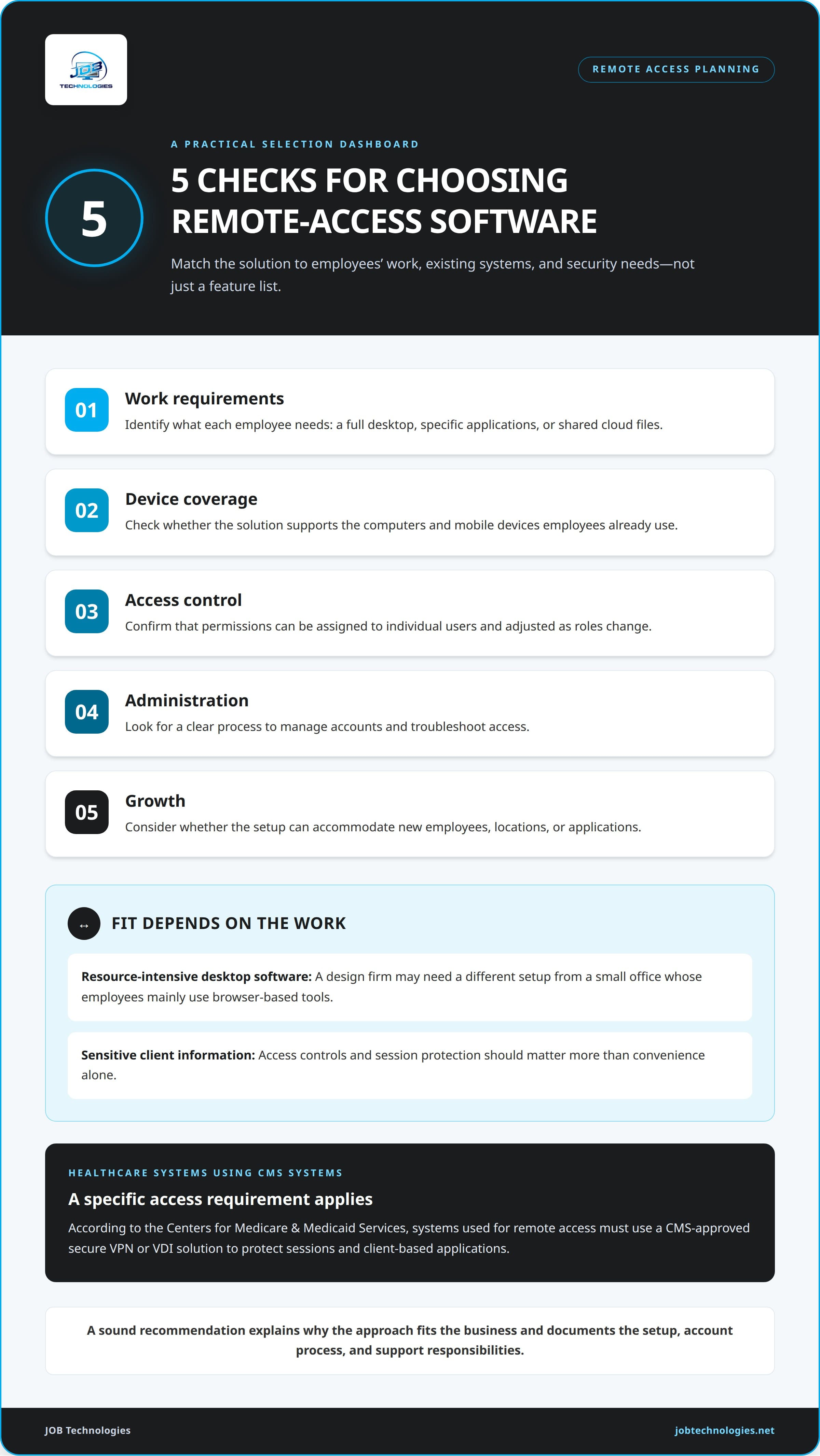
Small businesses can compare options using practical criteria such as:
- Work requirements: Does the employee need a full desktop, specific applications, or shared cloud files?
- Device coverage: Can the solution support the computers and mobile devices employees already use?
- Access control: Can permissions be assigned to individual users and adjusted as roles change?
- Administration: Can the business manage accounts and troubleshoot access through a clear process?
- Growth: Can the setup accommodate new employees, locations, or applications?
A provider then weighs those criteria together. A design firm whose staff use resource-intensive desktop software may need a different setup from a small office whose employees mainly use browser-based tools. If the business handles sensitive client information, access controls and session protection should matter more than convenience alone. For healthcare systems covered by CMS requirements, the approved VPN or VDI criteria described earlier also shape the choice.
Testing is another useful step. The provider can set up a representative user account and confirm that the employee can reach the intended applications from an approved device. A separate role can be tested to verify that it has different permissions. These checks can reveal practical issues, such as a slow-loading application or an employee who needs access to another work folder.
For remote access solutions for employees in Dubuque, a sound recommendation explains why the approach fits the business, rather than simply naming software. A provider can document the setup, account process, and support responsibilities so employees and managers understand how access works. This gives the business a basis for reviewing the arrangement as its applications, staffing, or work patterns change.
What internet speed and equipment do Dubuque employees need for remote work?
There’s no single internet speed that suits every remote role. The right connection depends on employees’ tasks: opening cloud documents places different demands on a network than using remote desktop software, joining video meetings, or transferring large files. A provider first assesses the applications and work patterns, then evaluates whether the connection can support them reliably.
Speed is only part of the picture. Download capacity affects how quickly work content reaches an employee; upload capacity matters when sending files, sharing a screen, or transmitting video. Latency and connection stability matter, too. For example, a video call may stutter on an unstable connection even when a speed test shows a strong download result. Testing during normal work gives a more useful view than relying on a single reading during a quiet period.
The assessment should also consider shared use at home. A remote employee might be on a video meeting while another household member streams media or uploads files. Those activities compete for network capacity. A provider can identify these patterns, assess the connection and work applications, and recommend whether the setup needs adjustment. The goal is to match the connection to actual tasks, not guess at a speed.
Equipment matters, too. A provider reviews the work computer, network connection, and peripherals an employee needs. A laptop with a reliable camera and microphone may suit frequent video calls; an external monitor can make reviewing spreadsheets or documents easier. A wired connection may be worth considering when wireless coverage is inconsistent. The right arrangement depends on the work, existing equipment, and where the employee works.
- Computer: Confirm that the work device supports required applications and receives appropriate maintenance.
- Network: Assess router placement, wireless coverage, and whether a wired connection would help.
- Peripherals: Match a headset, camera, keyboard, or monitor to the employee’s daily tasks.
- Work location: Consider signal strength and competing household use where the employee typically works.
A practical review follows the employee’s workflow. The provider can check whether the employee can sign in, open a work application, join a call, and access shared files without disruption. If an issue arises, the next step is to isolate its source: the home connection, device, wireless network, or application. That evidence helps target changes instead of replacing equipment unnecessarily.
For businesses in Dubuque, remote work readiness means balancing connection quality, device capability, and the applications employees use. A role focused on email and documents may need a different setup from one involving frequent video collaboration or large file transfers. A professional assessment turns those differences into clear equipment and connectivity recommendations.
What cybersecurity risks come with employee remote access, and how can an IT provider help employers reduce them?
Remote access extends the business environment beyond the office, making an employee’s device and connection part of the security picture. A stolen password, convincing phishing message, or malware on a laptop could expose systems the employee can reach. The impact depends on the account’s permissions and the sensitivity of the information.
Personal and third-party devices deserve particular care. A written agreement may explain expected device use, but it doesn’t remove technical risks. The National Institute of Standards and Technology (NIST) notes that agreements for third-party devices may not prevent compromised devices from connecting to sensitive organizational resources. A device can appear authorized while still carrying harmful software.
An IT provider can begin with a risk review focused on actual remote workflows. This means identifying which employees connect remotely, which devices they use, and which business systems those devices can reach. For example, a laptop used for email and a separate device used to access financial records present different exposure points. Mapping those paths helps prioritize protective controls without treating every employee’s work as identical.
Employers can reduce exposure with layered safeguards rather than relying on one password or policy. A provider can help design and maintain controls such as:
- Device standards: Define which devices may connect and what security condition they must meet.
- Access limits: Restrict remote connections to the systems required for each role.
- Sign-in protections: Strengthen account authentication and establish a process for suspicious login attempts.
- Security updates: Coordinate updates for supported devices and applications to address known weaknesses.
- Incident procedures: Set a clear response for lost devices, suspected account compromise, or unusual system activity.
Safeguards work best when employees know how to respond. A simple reporting process can tell a worker what to do after clicking a suspicious attachment or losing a work device. The provider can help establish the process and explain how access can be restricted while an issue is investigated. Prompt reporting gives the organization a clearer starting point for containing a potential incident.
Ransomware is another concern: an infected device may create a route to shared business systems. A security review can examine how remote devices connect, whether access is broader than necessary, and how response responsibilities are assigned. It can also clarify which systems need protection and what staff should do if files become inaccessible.
For employers in Dubuque, reducing remote access risk means aligning device safeguards, account protections, and response plans with actual work practices. A provider can coordinate these measures through cybersecurity and ransomware protection, then revisit them as employees, devices, and business systems change.
How can a provider help businesses compare VPNs, remote desktop, and cloud access?
A VPN, remote desktop, and cloud access address different connection needs. A provider compares them against employees’ tasks, existing applications, and security requirements. For example, someone using a cloud-based scheduling tool may not need the same setup as an employee working with specialized software installed on an office computer.
A VPN creates a protected connection between a remote device and a business network. Once connected, an employee may use permitted network resources as if connected locally. This can suit businesses that rely on applications or files hosted in the office. The provider assesses which resources need access and how permissions should be limited, rather than treating the VPN as unrestricted entry to every system.
Remote desktop access works differently. It lets an employee interact with a desktop or computer running the required work applications. This can be useful when a program depends on the office computer’s environment. For instance, specialized software might be installed on a workstation that stays at the workplace. The provider assesses the employee’s tasks, device access, and session protections to determine whether this setup is practical.
Cloud access connects employees directly to applications or services hosted online. A team using browser-based email, document collaboration, and scheduling may access those tools without connecting to an office computer or the entire business network. The provider considers how accounts, permissions, and application access are managed, particularly when employees rely on several cloud services for daily work.
- VPN: Consider it when employees need access to internal network resources.
- Remote desktop: Consider it when work depends on software running on a specific computer.
- Cloud access: Consider it when employees use online applications directly.
These approaches can work together. A business might use cloud applications for everyday collaboration while reserving remote desktop access for a specialized office program. The provider maps each workflow, identifies where information is stored, and recommends an access model for each task. For healthcare organizations using CMS systems, the requirement for a CMS-approved VPN or VDI solution remains an important consideration.
A comparison should consider more than convenience. A provider reviews user administration, device suitability, access boundaries, and how employees get support when a connection fails. They can also test representative workflows, such as opening a shared document or launching an office-based application remotely. This practical review can reveal friction before a setup is rolled out across the business.
For a tailored comparison of VPN, remote desktop, and cloud access options, request a remote access assessment based on your employees’ applications and work patterns.
JOB Technologies
JOB Technologies helps businesses in Dubuque align employee remote access with their existing systems and work practices. Through Managed IT Services and Network Installation & Management, the team can assess how staff connect, which business applications they use, and how the network supports those workflows. This is a practical next step when remote access decisions involve more than software, including network setup and ongoing IT management.
Bring your current access challenges, employee workflows, and business priorities to a consultation. That context helps shape an approach around how your team works, whether employees need office applications, cloud tools, or both.
Contact JOB Technologies to discuss remote access for your employees.
Set a Clear Direction for Your Remote Work
Make remote access part of a broader technology plan, not an isolated fix. Consider how employee access should change as your applications, team structure, and business priorities evolve. A clear plan can coordinate technology decisions and give employees a consistent way to work across locations.
For remote access solutions for employees in Dubuque, JOB Technologies can connect the discussion to your broader IT environment through Managed IT Services and Network Installation & Management. If your organization is also assessing AI Implementation, that work can be considered alongside its existing systems and operational goals.
Bring your priorities and current challenges into a conversation, then decide what support best fits your business. Contact JOB Technologies to discuss your next step. With a thoughtful plan and the right support, your team can move forward with greater clarity.
Frequently Asked Questions
What remote access solutions do businesses in Dubuque offer employees?
For businesses seeking remote access solutions for employees in Dubuque, options include VPN connections, remote desktop sessions, and cloud-based applications. The right fit depends on where work software runs and whether staff need office-hosted resources. For example, a sales representative might use cloud email and customer tools, while a designer relies on an office workstation. A mixed setup can serve both roles without giving employees identical access.
Which Dubuque IT providers install and manage remote access solutions?
JOB Technologies supports businesses with Managed IT Services and Network Installation & Management, helping coordinate remote access with existing technology. Its local service area includes Dubuque, Galena, East Dubuque, Dyersville, Farley, and Peosta. For example, a business adding remote access during a network change can address both needs together. This suits organizations looking for ongoing IT management rather than a one-time software setup.
How can Dubuque employers securely set up remote access for employees?
Employers can assign access according to job responsibilities, then include remote access in employee onboarding and offboarding. For example, a new staff member may need scheduling and email, while a departing employee’s account should be disabled as part of the exit process. A documented approval path for exceptions can help managers handle temporary duties without leaving outdated permissions in place.
What steps do IT professionals take to configure a VPN or remote desktop for employees?
IT professionals typically identify work applications and where they’re hosted, then select a suitable connection approach. They configure the network route and employee accounts, apply role-based permissions, and test access with representative work tasks. For example, a pilot user can confirm that a work application opens as intended. The provider can then document support procedures and account changes for future staffing or workflow updates.
What remote access software is best for small businesses in Dubuque?
The best option is the one that fits employees’ work, existing systems, devices, and security needs. A provider can assess those requirements, test access for representative roles, and recommend a compatible setup with individual permissions.