
A faster internet plan won’t fix damaged office wiring or failing network equipment. An office network upgrade in East Dubuque may require fixing on-site problems as well as choosing a broadband connection that suits your business.
When a connection is slow or unreliable, it can be hard to tell whether the problem is inside the office or with the internet service. East Dubuque businesses can compare cable, DSL, satellite, and fiber-optic options, considering how each connection works and what can affect performance.
This guide explains when on-site support can help with office wiring or network equipment, what to consider when comparing local broadband types, and how network installation and management can support a dependable workplace setup. Use these steps to identify the problem and decide what to address next.
Key Takeaways
- Learn how to distinguish office wiring or equipment problems from issues with the broadband connection.
- See which project details shape the cost of an upgrade, so you can understand what a tailored estimate needs to account for.
- Identify whether routers, switches, Wi-Fi, or cabling may need attention based on how your office network is performing.
- Follow a practical planning and installation sequence that keeps business needs and network dependencies in view.
- Explore ways to coordinate upgrade work and limit disruption, and when network installation and management support can help.
On-site support for office wiring and failed network equipment
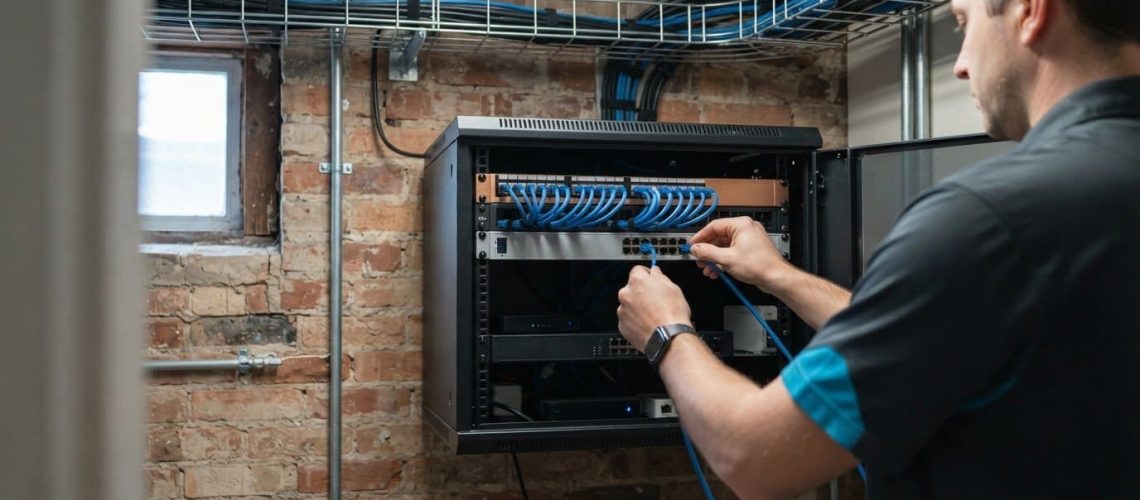
For an office network upgrade in East Dubuque, an on-site assessment can help distinguish an internal fault from an internet service problem. A technician can trace connections from the incoming service to workstations, identify damaged cabling or failed equipment, and test the network after repairs.
Network Equipment and Cabling
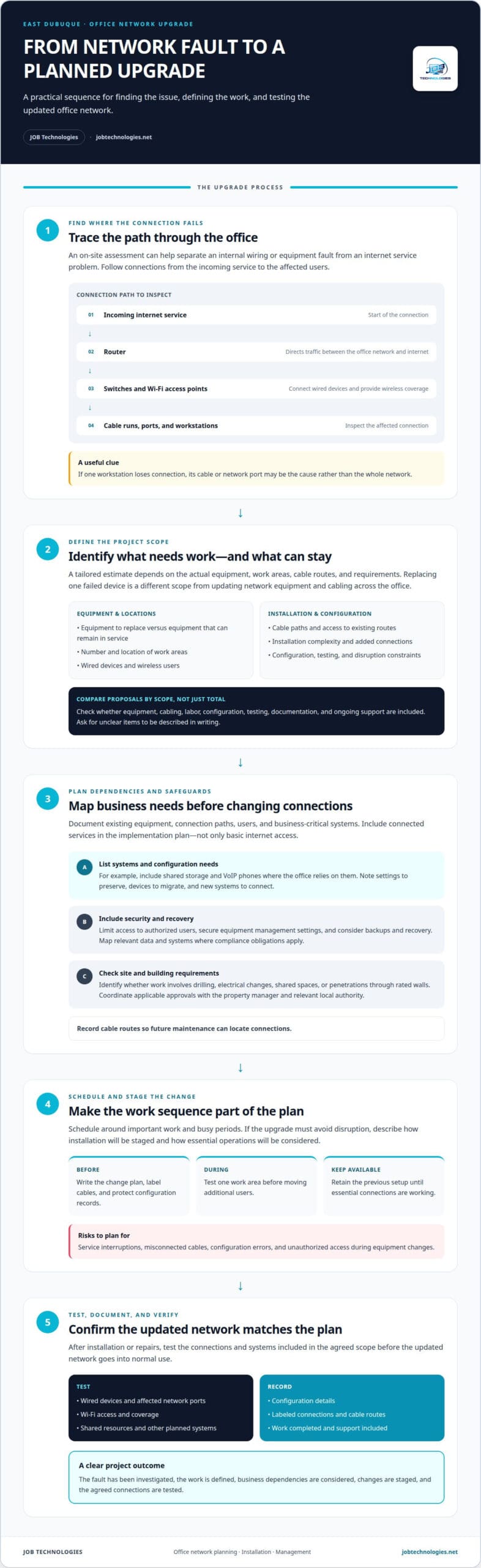
Routers direct traffic between the office network and internet connection. Switches connect wired devices, while Wi-Fi access points provide wireless coverage. A fault anywhere along this path can affect one user or the whole office. On-site troubleshooting can inspect cable connections, test affected network ports, and determine whether a router, switch, access point, or cable run needs attention. If one workstation loses connection, for example, its cable or port may be the cause rather than the entire network.
When comparing proposals, look for a clear description of the work, equipment, testing, and support included. Compare warranties by their coverage and duration, and clarify how ongoing support handles problems after installation. A written scope makes it easier to understand what each proposal covers.
Plan cybersecurity alongside the physical upgrade. Limit network access to authorized users, secure network equipment’s management settings, and consider how backups and recovery fit into the change. If your office has compliance obligations, map relevant data and systems before installation and include the necessary controls in the project plan.
Permit and building requirements depend on the work and property. Before installation, identify whether the plan involves drilling, electrical changes, shared building spaces, or penetrations through rated walls. Coordinate applicable approvals with the property manager and relevant local authority. Document cable routes so future maintenance can locate connections.
Upgrade risks include service interruptions, misconnected cables, configuration errors, and unauthorized access during equipment changes. Reduce these risks with a written change plan, labeled cables, protected configuration records, and staged testing. Test one work area before moving additional users, for example, and keep the previous setup available until essential connections are working.
Upgrade Costs and Project Planning
Project costs depend on cabling, equipment that needs replacement, the number of work areas, and installation complexity. Difficult cable routes or changes to several connected systems can require more planning than replacing one failed device. A useful proposal separates the tasks and explains what each includes, making the scope clear.
Start by documenting existing equipment, connection paths, user needs, and business-critical systems. Then map the proposed changes, schedule installation around important work, and record configuration details. During installation, technicians can label connections and test wired devices, Wi-Fi, and shared resources before the updated network goes into normal use.
What factors affect the cost of upgrading an office network?
The price of an office network upgrade depends on the project and is provided after a needs assessment in a proposal. Key cost factors include equipment, cabling, installation complexity, configuration, testing, and the need to avoid disruption. A useful estimate ties each cost to a defined task instead of treating every upgrade as the same job.
Equipment and installation scope
First, separate equipment that needs replacement from equipment that can stay in service. Replacing one router is a different project from updating switches, Wi-Fi access points, and cable runs throughout an office. The number and location of work areas matter, too: an open-plan office may need different work from separate rooms with wired devices and wireless users.
Cabling affects labor and materials. Accessible existing routes may require less work than routes through finished walls, ceilings, or shared spaces. Adding network connections at workstations can also expand the scope. A proposal should specify which devices and cable paths are included, along with installation, configuration, and testing.
Planning, configuration, and business requirements
Project planning defines the work required. An inventory of network devices, users, and business-critical systems helps identify what needs to be connected and tested. For example, an office that relies on shared storage and VoIP phones needs those systems included in the implementation plan, not just basic internet access.
Configuration takes time because network devices must work together. A router change can affect wireless access, connected switches, or security settings. If the upgrade must preserve existing settings, migrate devices, or connect new systems, the proposal should identify those tasks. Documentation and post-installation checks also help confirm that the updated setup matches the agreed scope.
How to compare proposals
Compare proposals by scope, not just by the total. Check that each describes equipment, cabling, labor, configuration, testing, documentation, and ongoing support. If one proposal excludes a task another includes, the totals do not cover the same project. Have unclear items described in writing before approving the work.
Timing can affect the plan, too. If installation must avoid a busy period, work may need to be staged or scheduled around essential operations. The proposal should describe that coordination and the work sequence so the estimate reflects the actual requirements.
A clearly scoped estimate makes trade-offs easier to evaluate before work begins. For a tailored plan covering office network installation and management, organize the equipment, locations, and business systems the upgrade needs to address.
What network equipment should an East Dubuque office upgrade, such as routers, switches, Wi-Fi, and cabling?
Start with equipment connected to the symptoms, not a blanket replacement. Trace the path from the internet handoff through the router, switches, access points, and wired devices. If several services fail together, inspect shared equipment first. If only one desk loses access, trace that workstation’s connection before changing the wider network.
Router and switch checks
The router connects the office network to its internet service and directs traffic between networks. Review its condition, configuration, and connection to the modem or provider handoff. A router that loses its connection can interrupt both wired and wireless work. A switch has a different role: it connects wired devices such as printers, computers, and VoIP phones.
If a particular device drops offline, inspect the switch port and connected cable. Problems affecting several devices attached to one switch can help narrow down the fault. Include the number and type of connected devices in the upgrade plan. Choose a replacement to suit the office’s actual connection needs, not an assumed capacity or feature set.
Wi-Fi coverage and cabling
Wireless problems can vary from room to room. Note where users lose access, video calls become unstable, or walls and office layout obstruct the signal. A technician can assess access-point placement and coverage, then determine whether repositioning or replacing equipment is appropriate. A meeting room with weak Wi-Fi, for example, may need an access point in a different location.
For wired connections, inspect cable condition, connectors, wall outlets, and routing. A loose connector can affect one workstation, while a damaged cable run may disrupt every device using that path. Labeling cable ends and documenting routes helps match outlets to switches during maintenance. Consider new cabling if existing routes are damaged, poorly organized, or unsuitable for the planned layout.
East Dubuque’s broadband connection also affects the equipment path. Cable service uses a cable modem and may slow when customers share bandwidth. Fiber tends to offer higher speeds than cable, while DSL performance depends substantially on distance from the provider’s office and requires an analog phone line. Satellite service uses a dish connected to a modem by cable.
Match the local service type to the office network’s connection point. A change in broadband service, for instance, may require attention to the modem or handoff, while a local Wi-Fi problem may lie beyond it. After equipment changes, test internet access and internal connections separately. This helps determine whether a remaining fault is with the provider connection or office hardware.
A careful office network upgrade in East Dubuque traces symptoms through each connection, replacing only equipment the assessment identifies as unsuitable or faulty.
What steps are involved in planning and installing an office network upgrade?
A well-planned upgrade starts with business needs and ends with documented testing. For an East Dubuque office, the sequence should account for the internet connection, internal equipment, users, and work that cannot pause.
- Define the business goals. Identify the problems the upgrade must solve, such as unreliable Wi-Fi in a meeting room or dropped connections at specific desks. Note which systems depend on the network, including shared files, printers, payment tools, and VoIP phones. These priorities determine what the installation must support.
- Document the current setup. Map the internet handoff, router, switches, access points, cable routes, and connected devices. Record which users or services experience problems and where they occur. For example, if one room loses wireless access while wired devices work, that detail helps focus the assessment.
- Set the project scope. Use the inventory to separate equipment that remains in place from components needing replacement or reconfiguration. Identify new cable runs, added workstations, and changes to wireless coverage. A written scope should describe the intended work and the systems that need testing after installation.
- Plan security and dependencies. List network access, administrative settings, backups, and business applications affected by the change. Consider which users require access to each system and how settings will be recorded. If a file server or VoIP phone system relies on existing network configurations, include those dependencies in the installation plan.
- Schedule the work sequence. Coordinate installation around essential business activity. Decide which areas can be upgraded first and which systems must remain available during the work. For example, a staged plan can move one office area at a time, while the schedule identifies when users may need to reconnect devices.
- Install and test in stages. Label connections as equipment is installed, then test each planned connection before moving forward. Check wired devices, Wi-Fi coverage, shared resources, and internet access separately. If a workstation connects but cannot reach a shared printer, investigate that path before marking the area complete.
- Document the finished network. Record equipment locations, cable labels, configuration details, and any remaining maintenance needs. Confirm that the final setup matches the agreed scope and that staff know how to connect their devices. Clear records make later troubleshooting and future changes more straightforward.
Keep the inventory, scope, schedule, and test results together in one project record. This gives your business a practical reference for reviewing the installation, understanding what changed, and planning future adjustments without relying on memory.
How long does an office network upgrade usually take, and how can downtime be minimized
Every office network upgrade has a different schedule. The timeline depends on the scope, equipment, cable routes, configuration needs, and testing. Replacing one device is different from coordinating new cabling, network equipment, and connections across several work areas.
Planning helps reveal what may extend installation. Accessible cable routes and a well-documented network can simplify the work. More coordination is needed when systems share network connections or must remain available during changes. The schedule should account for installation, configuration, testing, and any transition between the old and updated setup.
To estimate the work sequence and reduce disruption, plan these steps:
- Map essential services. Identify which business functions rely on the network, such as VoIP calls, shared files, or customer transactions. This shows which connections need priority during installation.
- Identify dependencies. Record how routers, switches, access points, and business systems connect. If a shared resource depends on a particular switch, plan its change around the users who need it.
- Prepare equipment and settings. Organize the equipment, configuration details, and cable labels before changing live connections. This reduces avoidable pauses while technicians locate information or trace a cable.
- Choose a workable sequence. Group changes by device or work area. For example, an office can transition one section while other areas continue using their existing connections.
- Schedule critical changes carefully. Coordinate interruptions around essential operations. If a router change affects the whole office, schedule that transition separately from cable work that affects one desk.
- Test each stage. Check internet access, wired connections, Wi-Fi, shared devices, and VoIP phones after their related changes. Resolve issues before moving to the next area.
- Keep a fallback plan. Document the previous configuration and preserve the ability to restore essential connections if testing identifies a problem. This provides a clear recovery path during the transition.
Communicating the work sequence to staff can also reduce disruption. A brief notice can identify affected rooms, systems, and expected interruption points without promising an unsupported restoration time. For example, employees can save their work before a planned change to shared network equipment. Clear cable labels and a record of updated settings help technicians troubleshoot promptly if a connection fails after installation.
For a coordinated installation and testing plan, schedule network installation support for your office upgrade.
After each stage, give staff a clear way to report problems, such as difficulty accessing shared files or connecting to Wi-Fi. Ask them to include the affected room, device, and service so technicians can narrow down what to check. Record issues and resolutions alongside the updated configuration, and confirm that essential services work before marking an area complete. If internet performance is a concern, distinguish changes to the office network from the type of connection in use. Using the same DSL provider as others in the area does not reduce DSL speeds. This helps avoid attributing a speed concern to shared provider use alone; reported issues can still be checked during testing and follow-up.
JOB Technologies: Network Installation & Management
JOB Technologies helps East Dubuque businesses plan and implement network changes through Network Installation & Management. Turn to the team when office wiring, connected equipment, or network performance needs coordinated attention. This work can address the business network as a whole, rather than treating a failed connection as an isolated device problem.
Managed IT Services can complement network management when your business needs ongoing support for systems that rely on connectivity. If an upgrade also involves VoIP phones, include their network connections in the plan so installation and testing account for both.
Contact JOB Technologies to discuss your office network upgrade.
Build a Network That Can Support What Comes Next
An office network upgrade in East Dubuque is an opportunity to align technology decisions with your business’s priorities. Once the network foundation reflects how your team works, you can plan future changes with fewer disconnected decisions. These may include how employees communicate, manage routine IT needs, or bring new tools into daily workflows.
JOB Technologies offers Network Installation & Management and Managed IT Services for businesses planning network improvements and ongoing technology support. If you’re considering AI Implementation, a dependable technology environment can also provide a clearer starting point for deciding how new tools fit existing operations. Start with a conversation about your goals, current challenges, and the changes you want your systems to support.
Contact JOB Technologies to discuss a practical direction for your office network. A thoughtful plan can help your team move forward with greater clarity and confidence.
Frequently Asked Questions
What office network upgrade services are available in East Dubuque, Illinois?
East Dubuque businesses can get network installation and management, managed IT services, and related technology support from JOB Technologies. An on-site network evaluation and recommendations can help identify a suitable direction before work is planned. For example, a business assessing a new office layout can discuss how network needs connect with data backup, cybersecurity, or VoIP phones. This support is for business technology needs.
Which local IT providers handle office network upgrades near East Dubuque?
JOB Technologies provides network installation and management for businesses in East Dubuque and nearby communities, including Dubuque, Galena, Dyersville, Farley, and Peosta. Businesses seeking coordinated IT help can also consider Managed IT Services, which support broader technology operations alongside network needs. An on-site network evaluation and recommendations can help frame the project around the business’s specific environment.
What permits, building requirements, or cabling rules apply to office network installations in East Dubuque?
Requirements depend on the work and property. Identify any drilling, electrical changes, shared building spaces, or penetrations through rated walls. Coordinate applicable approvals with the property manager and relevant local authority, and document cable routes.